Extensions
Extensions are a new mechanism introduced in Apache CloudStack to allow administrators to extend the platform’s functionality by integrating external systems or custom workflows. Currently, CloudStack supports two extension types: Orchestrator and NetworkOrchestrator.
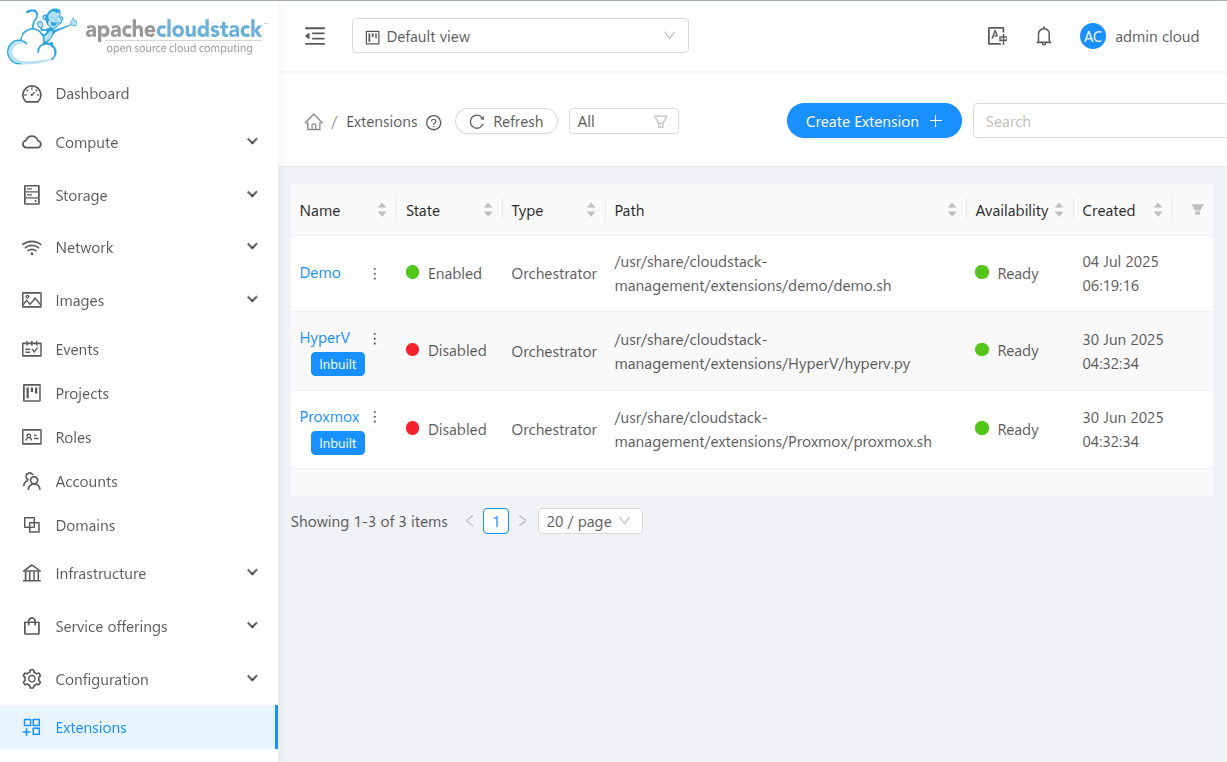
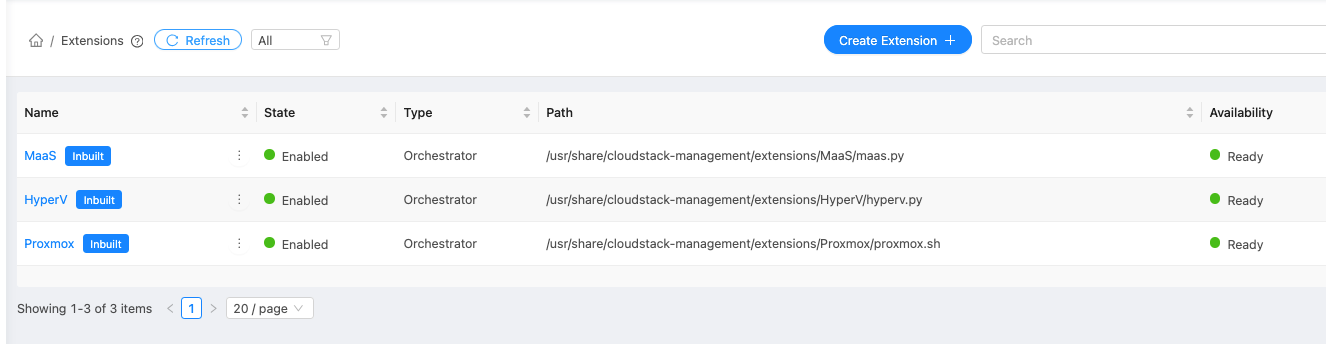
In the UI, extensions can be managed under Extensions menu.
Overview
An extension in CloudStack is defined as an external binary (written in any programming language) that implements specific actions CloudStack can invoke. This allows operators to manage resource lifecycle operations outside CloudStack, such as provisioning VMs in third-party systems, orchestrating network and VPC services on external devices, or triggering external automation pipelines.
Extensions are managed through the API and UI, with support for configuration, resource mappings, and action execution.
Configuration
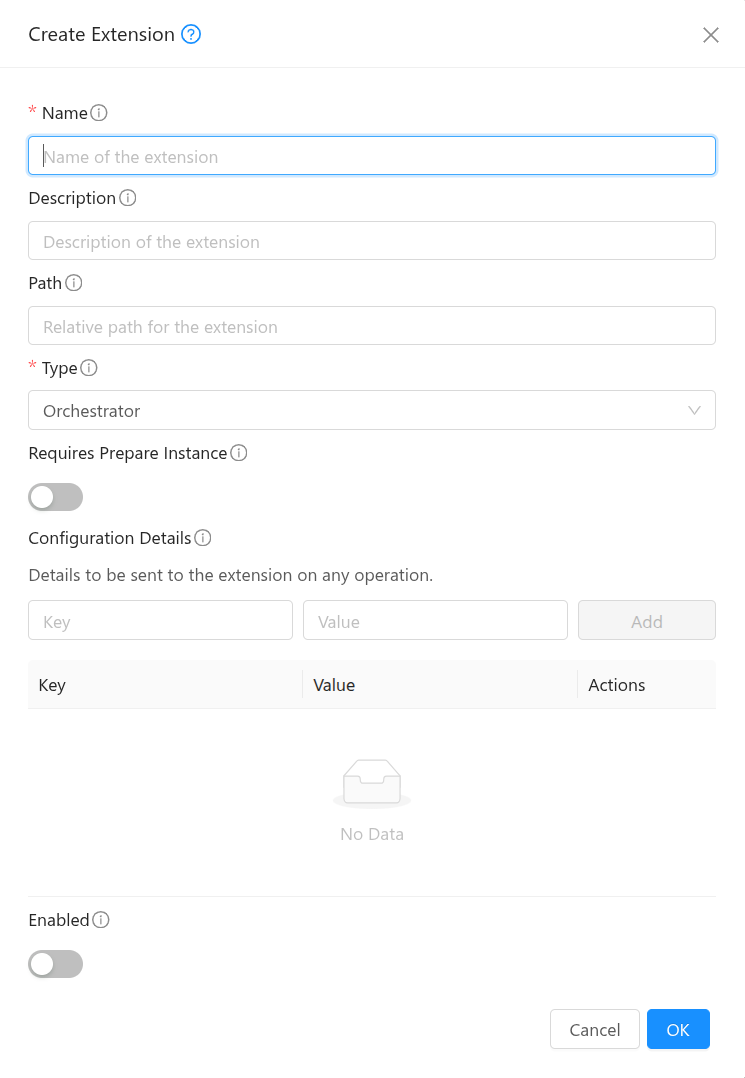
Administrators can define and manage the following components of an extension:
Path: A path to a file or script that will be executed during extension operations.
Configuration Details: Key-value properties used by the extension at runtime.
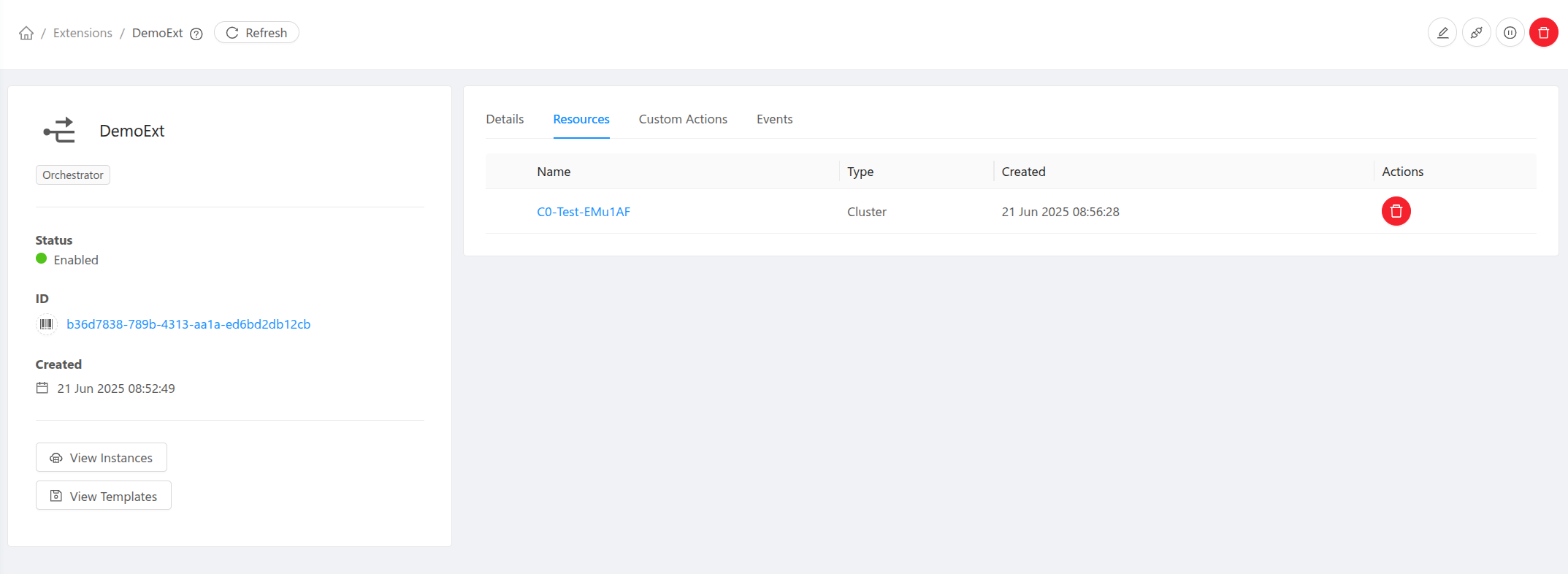
Resource Mappings: Association between extensions and CloudStack resources such as clusters and physical networks.
Path and Availabilty
The path for an extension can point to any binary or executable script. If no explicit path is provided, CloudStack uses a default base Bash script. The state of the path is validated across all management servers. In the UI, the Availabilty is displayed as Not Ready if the file is missing, inaccessible, or differs across management servers.
All extension files are stored under a directory named after the extension within /usr/share/cloudstack-management/extensions.
Payload
CloudStack sends structured JSON payloads to the extension binary during each operation. These payloads are written to .json files stored under /var/lib/cloudstack/management/extensions. The extension binary is expected to read the file and return an appropriate result. CloudStack automatically attempts to clean up payload files older than one day.
Orchestrator Extension
An Orchestrator extension enables CloudStack to delegate VM orchestration to an external system. Key features include:
Cluster Mapping: Orchestrator extensions can be associated with one or more CloudStack clusters.
Hosts: Multiple hosts can be added to such clusters, ideally pointing to different physical or external hosts.
Instance Lifecycle Supported: Orchestrator extensions can handle basic VM actions like prepare, deploy, start, stop, reboot, status and delete.
Console Access: Instances can be accessed either via VNC consoles or through a URL, depending on the capabilities of the orchestrator extension. CloudStack retrieves console details from extensions using the
getconsoleaction and either forwards them to the Console Proxy VM (CPVM) (for VNC access) or provides the external console URL to the user. Since 4.22.0, out-of-the-box console access support is available for instances deployed using the in-built Proxmox extension. See :ref:`Console Access for Instances with Orchestrator Extensions <console-access-for-instances-with-orchestrator-extensions>`for details on adding console access support in developed extensions.Configuration Details: Key-value configuration details can be specified at different levels - extension, cluster mapping, host, template, service offering, instance.
Custom Actions: Admins can define custom actions beyond the standard VM operations.
Instance Preparation: Orchestrator extensions can optionally perform a preparation step during instance deployment. This step is executed before the instance is started on the external system. It allows the extension to update certain instance details in CloudStack. CloudStack sends a structured JSON containing the instance configuration, and the extension can respond with the values it wishes to modify. Currently, only a limited set of fields can be updated: the instance’s VNC password, MAC address, details, and the IPv4/IPv6 addresses of its NICs.
Networking: If networking is setup properly on the external system (See in-built extensions networking for more details.), the Virtual Router in CloudStack can connect to the external VMs and provide DHCP, DNS, and routing services.
Note: User data and ssh-key injection from within CloudStack is not supported for the external VMs in this release. The External systems should handle user-data and ssh-key injections natively using other mechanisms.
NetworkOrchestrator Extension
A NetworkOrchestrator extension enables CloudStack to delegate guest network and VPC service orchestration to an external network system. Key features include:
Physical Network Mapping: NetworkOrchestrator extensions are registered with a CloudStack physical network instead of a cluster.
Provider-based Integration: When a NetworkOrchestrator extension is registered with a physical network, CloudStack creates an external network service provider using the extension name. Network and VPC offerings can then use that provider.
Capability-driven Services: Supported services are declared through the extension details
network.servicesand optional per-service capabilities innetwork.service.capabilities. CloudStack uses these declarations when exposing supported services and validating offering capabilities.Network and VPC Lifecycle: Depending on the declared services, the extension can handle operations for guest networks, VPCs, public IPs, NAT, load balancing, DHCP, DNS, userdata, network ACLs, and related restart or reapply flows.
Registration Details: Resource-specific details such as device endpoints, credentials, host lists, or interface mappings can be stored on the physical-network registration and updated later through the UI or the
updateRegisteredExtensionAPI.Network and VPC Custom Actions: Admins can define custom actions for
NetworkandVpcresources when the extension advertises theCustomActionservice.Reference Implementation: A Linux network namespace based implementation is available in cloudstack-extensions. This reference backend has been validated with KVM-based smoke tests.
CloudStack provides built-in Orchestrator Extensions for Proxmox, Hyper-V, and MaaS, which work with their respective environments out of the box.
Note
When a CloudStack host linked to an orchestrator extension is placed into Maintenance mode, all running instances on the host will be stopped.
For hosts linked to extensions, CloudStack will report zero for CPU and memory capacity, and host metrics will reflect the same. During instance deployment, capacity checks are the responsibility of the extension executable; CloudStack will not perform any capacity calculations.
Some of the features that rely on interaction with VMs, such as VM snapshots, live migration, VM scaling, VM autoscaling groups, VNF appliance, Kubernetes clusters, etc are currently not supported for instances managed by orchestrator extensions.
Custom Actions
In addition to standard lifecycle operations, extensions support custom actions. These can be configured via UI in the extension details view or the addCustomAction API. The extension binary or script must implement handlers for these action names and process any provided parameters.
For Orchestrator extensions, custom actions typically target VirtualMachine resources. For NetworkOrchestrator extensions, custom actions can target Network and Vpc resources when the extension advertises the CustomAction network service.
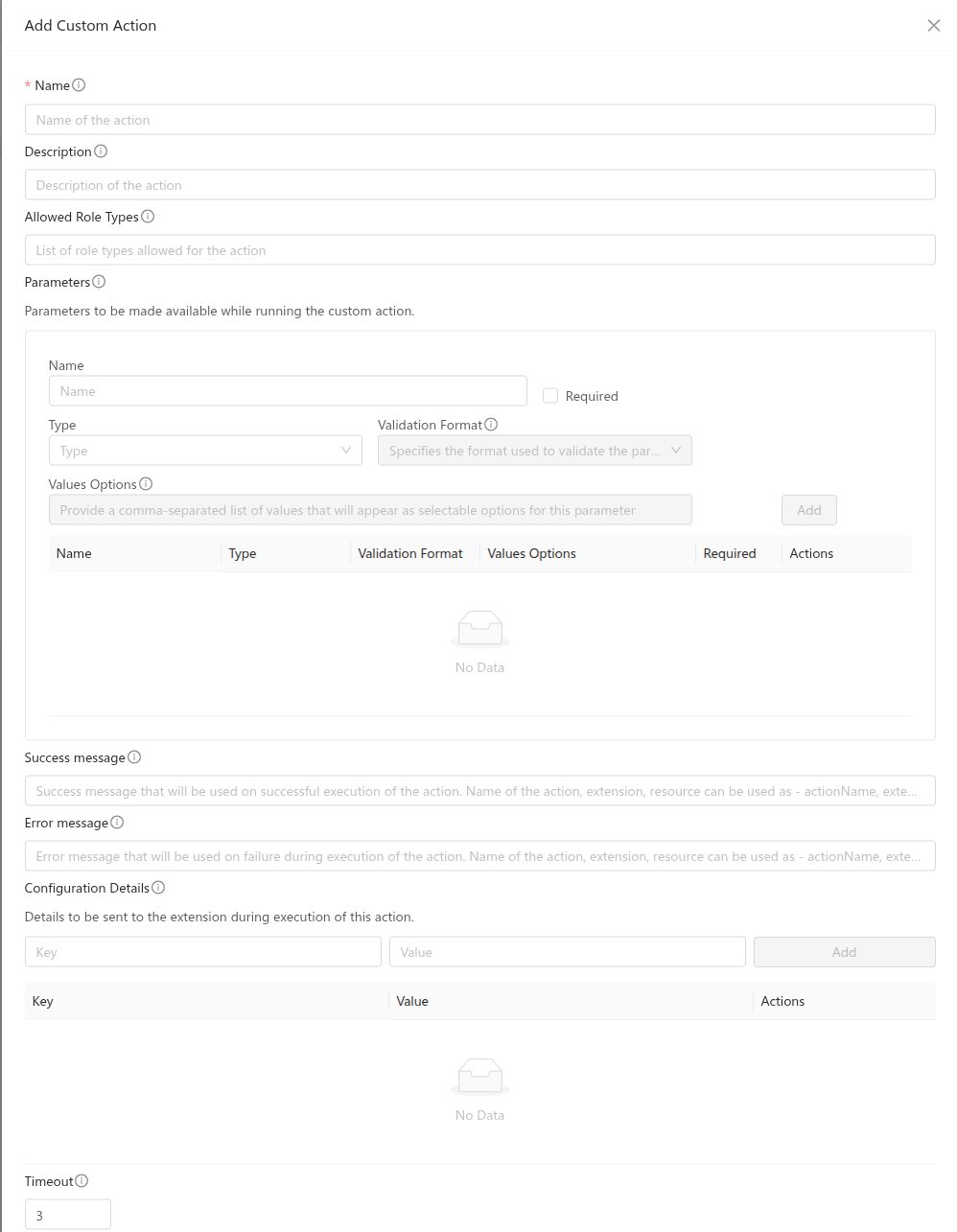
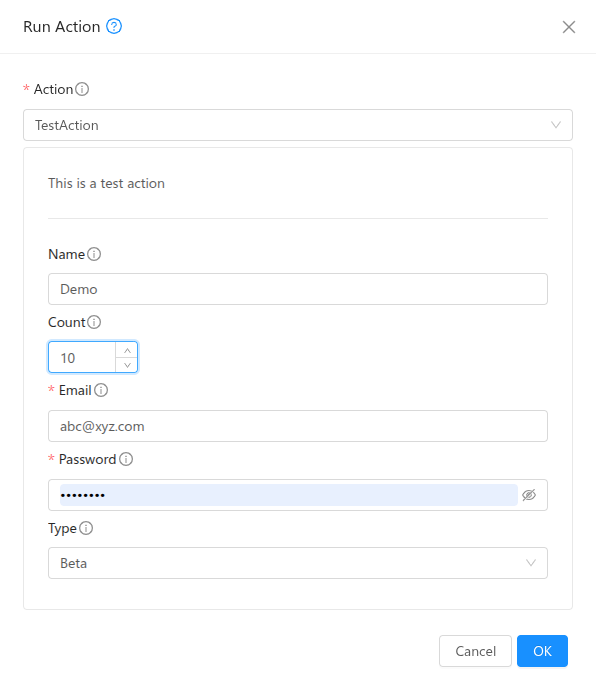
Description, allowed role types, parameters, success/error messages, configuration details, timeout can be defined during creation or update. Alowed role types can be one or more of Admin, Resource Admin, Domain Admin, User. Success and error messages will be used and returned during action execution. They allow string expansion and the following can be used to customise messages:
{{actionName}} for showing name of the action
{{extensionName}} for showing name of the extension
{{resourceName}} for showing name of the resource
An example usage can be - “Successfully completed {{actionName}} for {{resourceName}} using {{extensionName}}”. Configuration details can be key-value pairs which will be passed to the extension during action execution. Timeout value can be configured to adjust wait time for action completion.
A single parameter can have the following details:
name: Name of the parameter.
type: Type of the parameter. It can be one of the following: BOOLEAN, DATE, NUMBER, STRING
validationformat: Validation format for the parameter value. Supported only for NUMBER and STRING type. For NUMBER, it can be NONE or DECIMAL. For STRING, it can be NONE, EMAIL, PASSWORD, URL, UUID.
valueoptions: Options for the value of the parameter. This is allowed only for NUMBER and STRING type.
Supported Resource Types
Custom actions can be attached to the following resource types:
VirtualMachinefor Orchestrator extensions.
Networkfor NetworkOrchestrator extensions.
Vpcfor NetworkOrchestrator extensions.
For network and VPC custom actions, CloudStack dispatches the action to the external provider that serves the CustomAction service for the selected resource.
For NetworkOrchestrator extensions, the action is executed as custom-action using the standard payload-file invocation model:
/path/to/<extension_name>.sh custom-action <payload_file> <timeout_seconds>
The payload file contains top-level keys such as action, action-params, physical-network-extension-details, and network-extension-details. Unlike other network extension commands, the custom action request does not wrap its command-specific values inside a nested payload object.
Running Custom Action
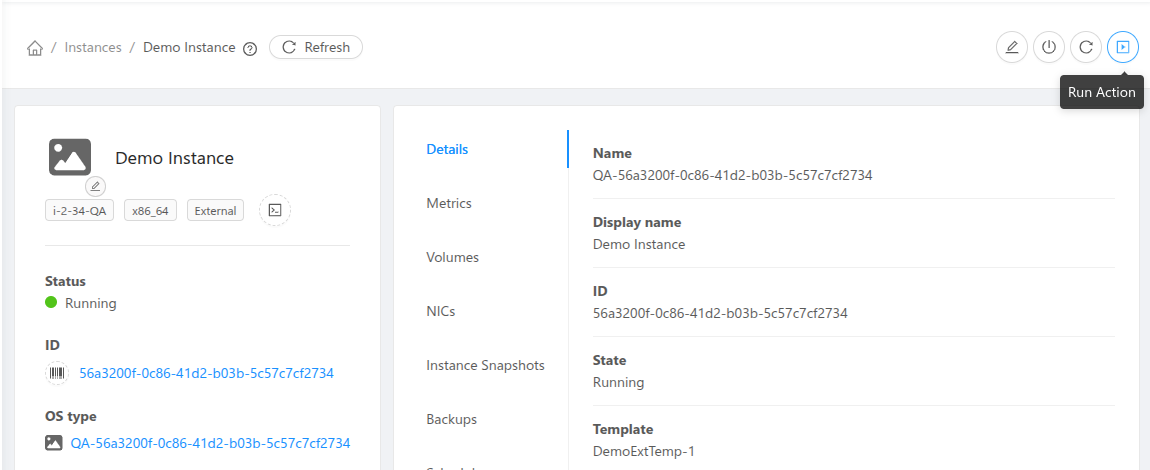
All enabled custom actions can then be triggered for a resource of the type the action is defined for or provided while running, using the Run Action view or the relevant custom action API.
For network and VPC custom actions, CloudStack passes the full request in the payload file and returns the script’s stdout to the caller. The available actions shown in the UI depend on the selected resource type and the extension bound to that resource.
In-built Orchestrator Extensions
CloudStack provides in-built Orchestrator Extensions for Proxmox, Hyper-V and MaaS. These extensions work with Proxmox, Hyper-V and MaaS environments out of the box, and can also serve as reference implementations for anyone looking to develop new custom extensions. The Extension files are located in /usr/share/cloudstack-management/extensions/, under the subdirectories Proxmox, HyperV, and MaaS. The Proxmox Extension is written in shell script, while the Hyper-V and MaaS Extensions are written in python. Proxmox and Hyper-V Extensions support some custom actions in addition to the standard VM actions like deploy, start, stop, reboot, status and delete. After installing or upgrading CloudStack, in-built Extensions will show up in the Extensions section in UI.
Note: These Extensions may undergo changes with future CloudStack releases and backwards compatibility is not guaranteed.
Proxmox
The Proxmox CloudStack Extension is written in shell script and communicates with the Proxmox Cluster using the Proxmox VE API over HTTPS.”
Before using the Proxmox Extension, ensure that the Proxmox Datacenter is configured correctly and accessible to CloudStack.
Since 4.22.0, console access support is available for instances deployed using the in-built Proxmox extension via VNC and console proxy VM.
Note
Proxmox VNC connections have a short initial connection timeout (about 10 seconds), even when accessing the console from the CloudStack UI. If the noVNC interface takes longer to load, or if there is a delay between creating the console endpoint and opening it, the connection may fail on the first attempt. In such cases, users can simply retry to establish the console session.
Get the API Token-Secret from Proxmox
If not already set up, create a new API Token in the Proxmox UI by navigating to Datacenter > Permissions > API Tokens.
Uncheck the Privilege Separation checkbox in the Add: Token dialog
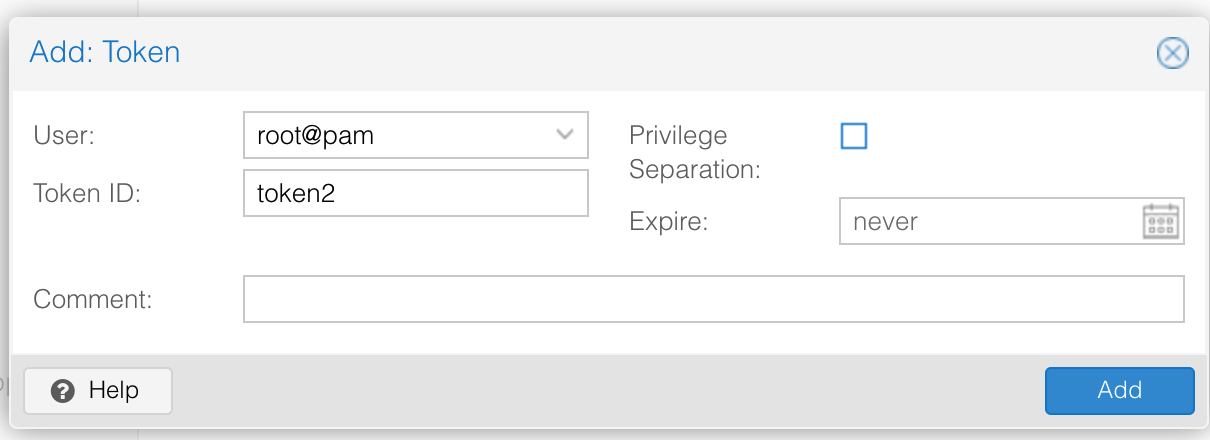
Note down the user, token, and secret.
Alternatively, check the Privilege Separation checkbox in the Add: Token dialog, and give permissions to the API Token by navigating to Datacenter > Permissions > Add > API Tokens Permission
Set Role = PVEAdmin and Path = /vms
Set Role = PVEAdmin and Path = /storage
Set Role = PVEAdmin and Path = /sdn
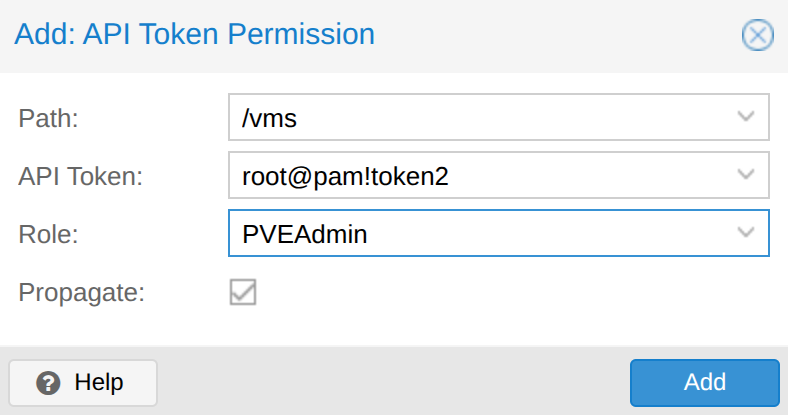
To check whether the token and secret are working fine, you can check the following from the CloudStack Management Server:
export PVE_TOKEN='root@pam!<PROXMOX_TOKEN>=<PROXMOX_SECRET>'

curl -s -k -H "Authorization: PVEAPIToken=$PVE_TOKEN"  https://<PROXMOX_URL>:8006/api2/json/version | jq
It should return a JSON response similar to this:
{
   "data": {
      "repoid": "ec58e45e1bcdf2ac",
      "version": "8.4.0",
      "release": "8.4"
   }
}
Adding Proxmox to CloudStack
To set up the Proxmox Extension, follow these steps in CloudStack:
Enable Extension
Enable the Extension by clicking the Enable button on the Extensions page in the UI.
Create Cluster
Create a Cluster with Hypervisor type External and Extension type Proxmox.
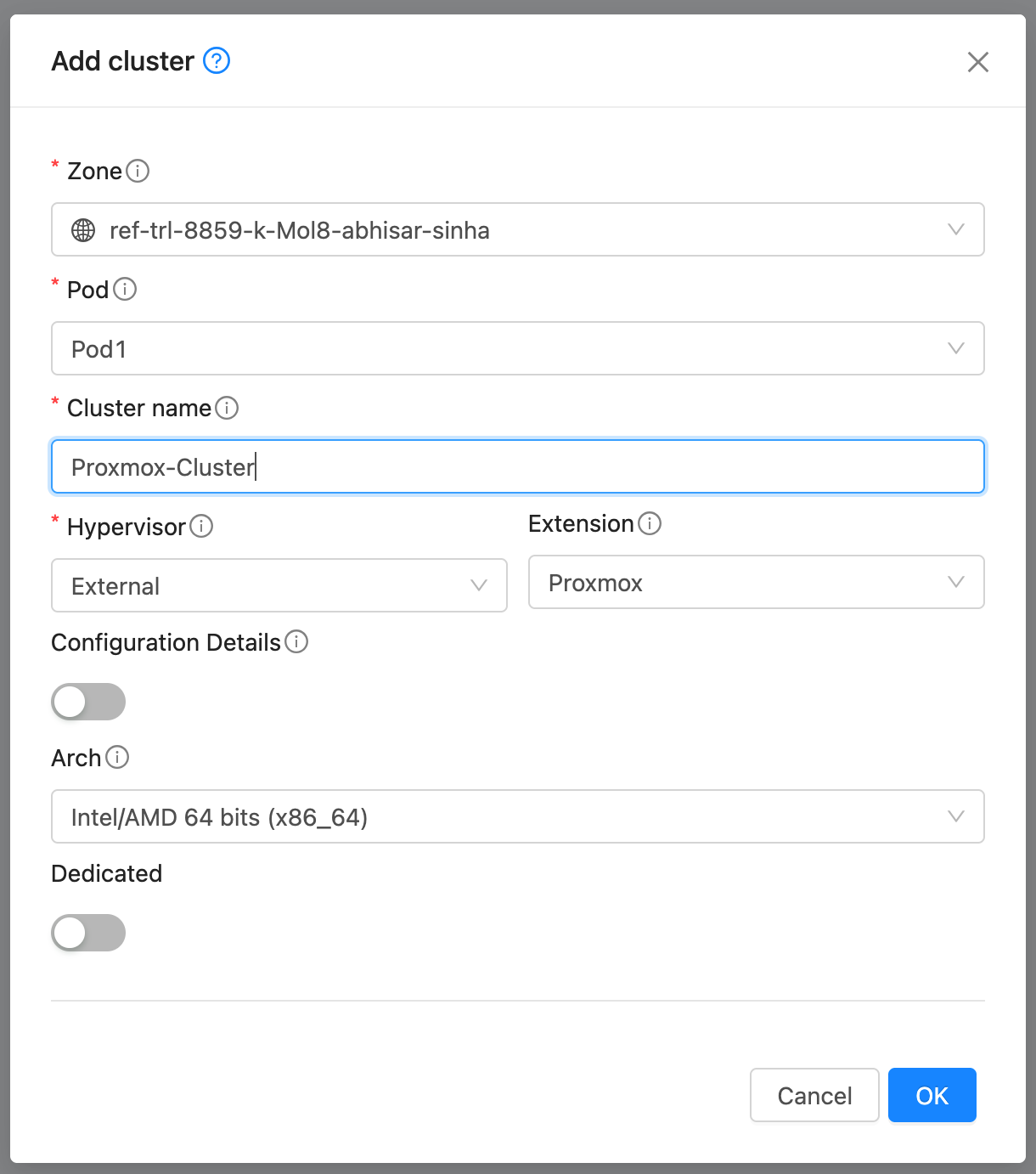
Add Host
Add a Host to the newly created Cluster with the following details:
If the Proxmox nodes use a shared API endpoint or credentials, the url, user, token, and secret can be set in the Extension’s Configuration Details instead of per Host. However, node and network_bridge must still be specified individually for each Host.
url: IP address/URL for Proxmox API access, e.g., https://<PROXMOX_URL>:8006.
user: User name for Proxmox API access
token: API token for Proxmox
secret: API secret for Proxmox
node: Hostname of the Proxmox nodes
network_bridge: Name of the network bridge to use for VM networking
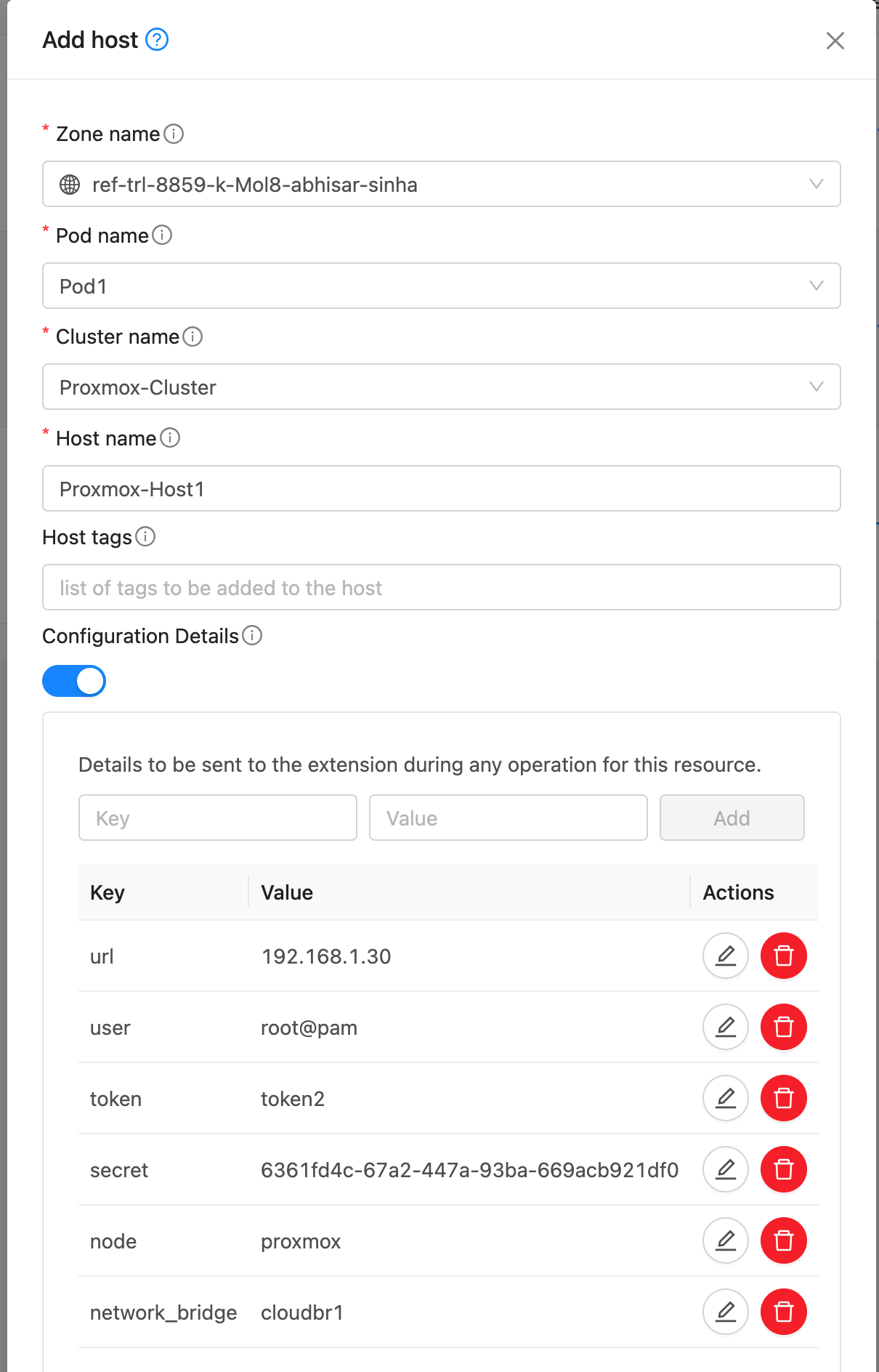
Note: If the TLS certificate cannot be verified when CloudStack connects to the Proxmox node, add the detail verify_tls_certificate and set it to false to skip certificate verification.
Create Template
A Template in CloudStack can map to either a Template or an ISO in Proxmox. Provide a dummy url and template name. Select External as the hypervisor and Proxmox as the extension. Under External Details, specify:
template_type: template or iso
template_id: ID of the template in Proxmox (if template_type is template)
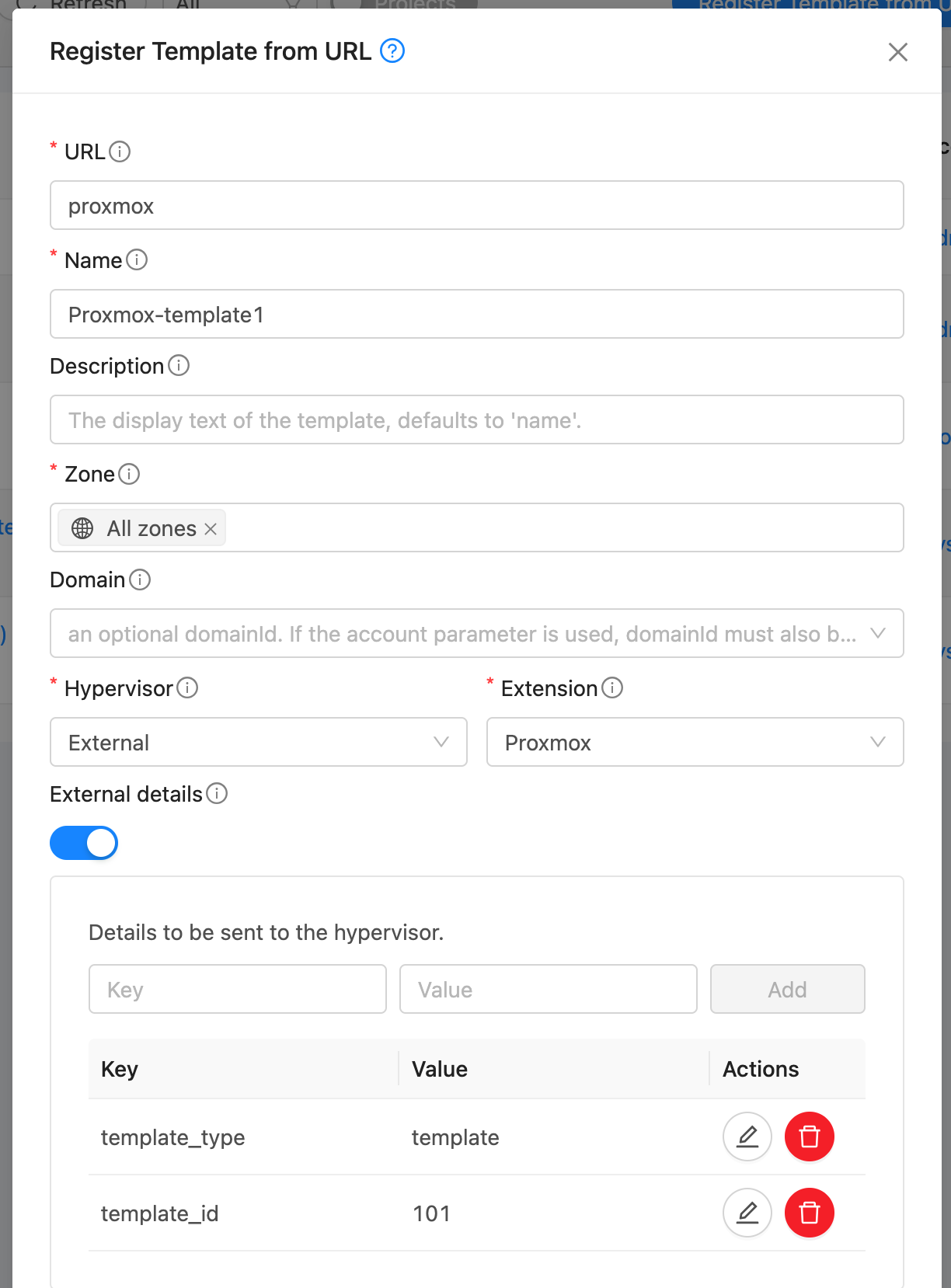
iso_path: Full path to the ISO in Proxmox (if template_type is iso)
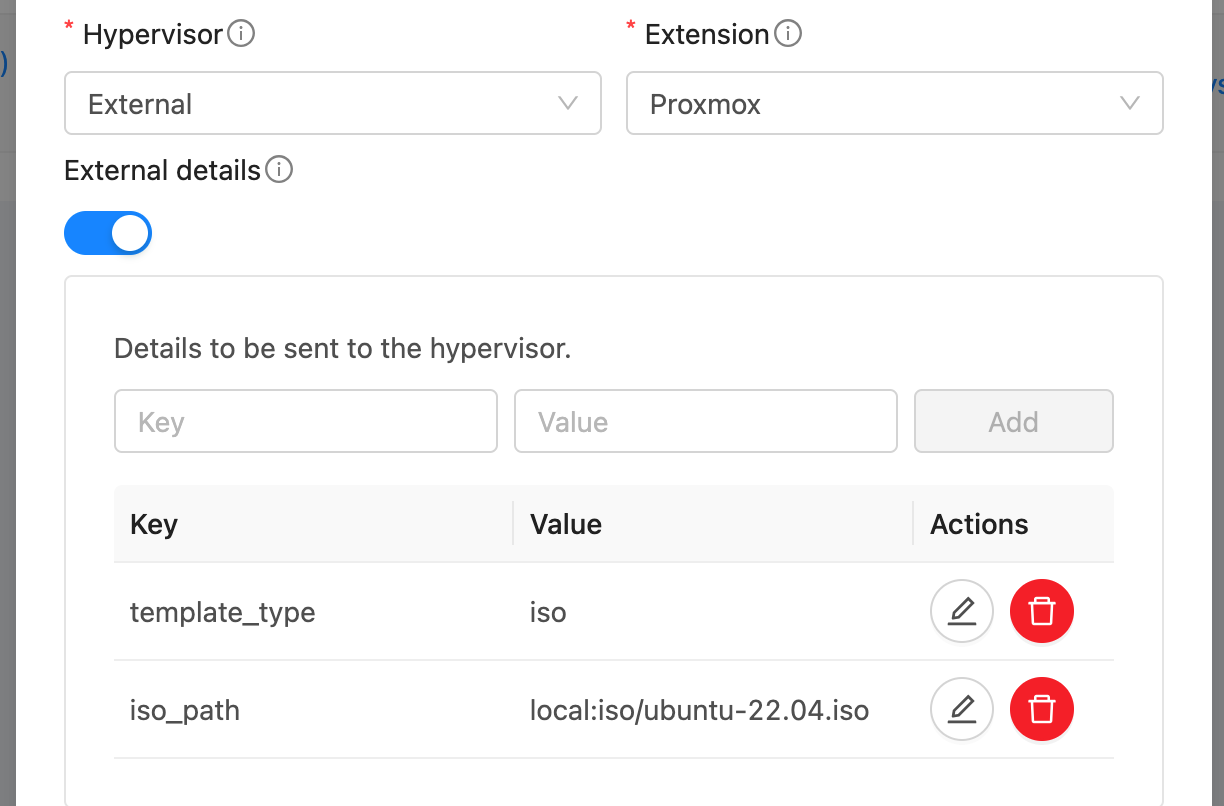
Note: Templates and ISOs should be stored on shared storage when using multiple Proxmox nodes. Or copy the template/iso to each host’s local storage at the same location.
Deploy Instance
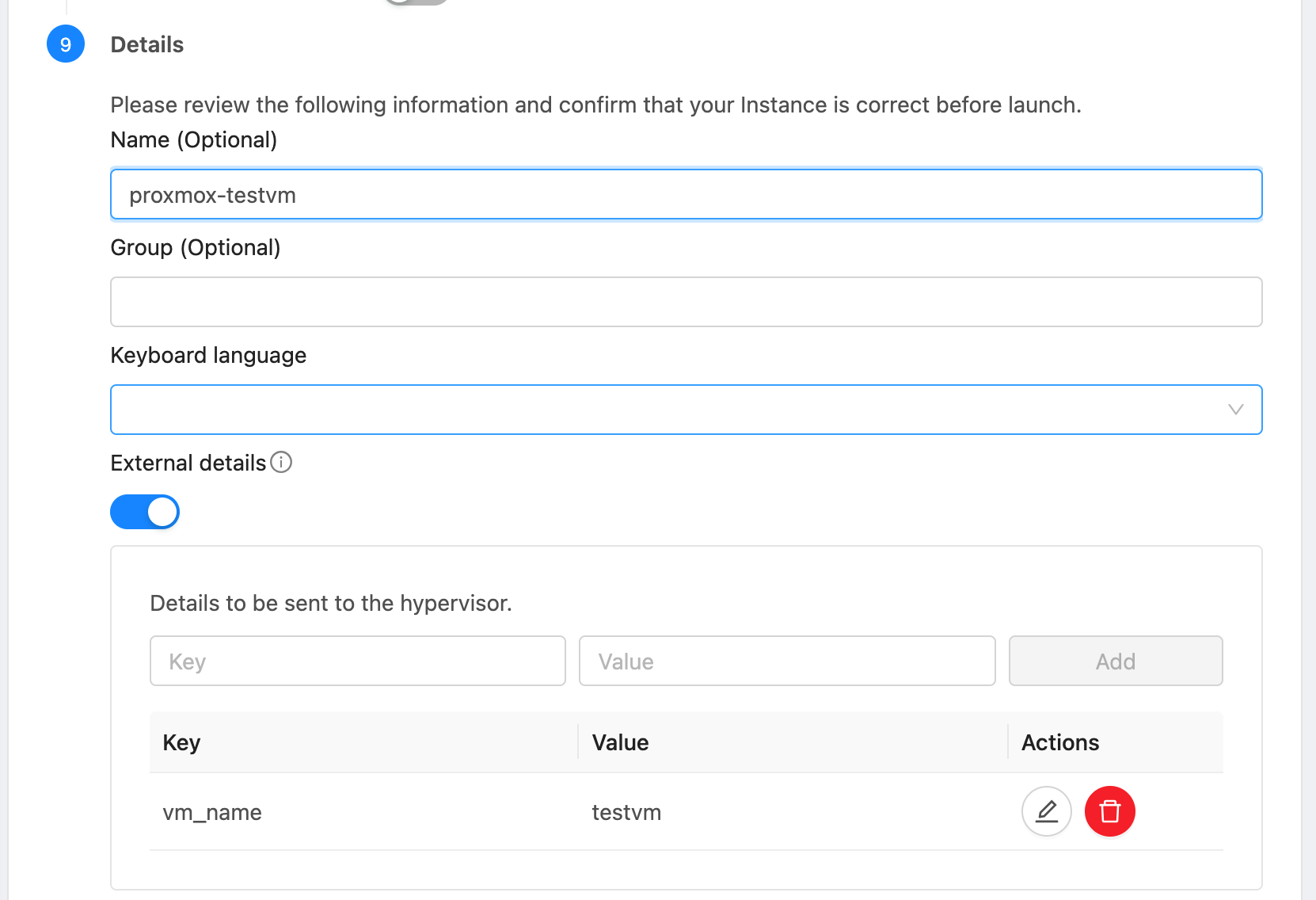
Deploy an Instance using the Template created above. Optionally, provide the detail vm_name to specify the name of the VM in Proxmox. Otherwise, the CloudStack Instance’s internal name is used. The VM Id in Proxmox is mapped to the CloudStack Instance and stored as a detail in CloudStack DB. The Instance will be provisioned on a randomly selected Proxmox host. The VM will be configured with the MAC address and VLAN ID as defined in CloudStack.
Lifecycle Operations
Operations Start, Stop, Reboot, and Delete can be performed on the Instance from CloudStack.
Custom Actions
Custom actions Create Snapshot, Restore Snapshot, and Delete Snapshot are also supported for Instances.
Configuring Networking
Proxmox nodes and CloudStack hypervisor hosts must be connected via a VLAN trunked network. On each Proxmox node, a bridge interface should be created and connected to the network interface that carries the VLAN-tagged traffic. This bridge must be specified under Configuration Details (network_bridge) when registering the Proxmox node as a Host in CloudStack.
When a VM is deployed, CloudStack includes the assigned MAC address and VLAN ID in the Extension payload. The VM created on the Proxmox node is configured with this MAC and connected to the corresponding VLAN via the specified bridge.
Upon boot, the VM broadcasts a VLAN-tagged DHCP request, which reaches the CloudStack Virtual Router (VR) handling that VLAN. The VR responds with the appropriate IP address as configured in CloudStack. Once the VM receives the lease, it becomes fully integrated into the CloudStack-managed network.
Users can then manage the Hyper-V VM like any other CloudStack guest Instance. Users can apply Egress Policies, Firewall Rules, Port Forwarding, and other networking features seamlessly through the CloudStack UI or API.
Hyper-V
The Hyper-V CloudStack Extension is a Python-based script that communicates with the Hyper-V host using WinRM (Windows Remote Management) over HTTPS, using NTLM authentication for secure remote execution of PowerShell commands that manage the full lifecycle of virtual machines.
Each Hyper-V host maps to a CloudStack Host. Before using the Hyper-V Extension, ensure that the Hyper-V host is accessible to the CloudStack Management Server via WinRM over HTTPS.
Console access for instances deployed using the Hyper-V extension is not available out of the box.
Configuring WinRM over HTTPS
Windows Remote Management (WinRM) is a protocol developed by Microsoft for securely managing Windows machines remotely using WS-Management (Web Services for Management). It allows remote execution of PowerShell commands over HTTP or HTTPS and is widely used in automation tools such as Ansible, Terraform, and Packer for managing Windows infrastructure.
To enable WinRM over HTTPS on the Hyper-V host, ensure the following:
WinRM is enabled and configured to listen on port 5986 (HTTPS).
A valid TLS certificate is installed and bound to the WinRM listener. You may use a certificate from a trusted Certificate Authority (CA) or a self-signed certificate.
The firewall on the Hyper-V host allows inbound connections on TCP port 5986.
The CloudStack Management Server has network access to the Hyper-V host on port 5986.
The Hyper-V host has a local or domain user account with appropriate permissions for managing virtual machines (e.g., creating, deleting, configuring VMs).
Sample powershell script to configure WinRM over HTTPS with self-signed TLS certificate is given below:
Enable-PSRemoting -Force
$cert = New-SelfSignedCertificate -DnsName "$env:COMPUTERNAME" -CertStoreLocation Cert:\LocalMachine\My
New-Item -Path WSMan:\LocalHost\Listener -Transport HTTPS -Address * -CertificateThumbprint $cert.Thumbprint -Force
New-NetFirewallRule -DisplayName "WinRM HTTPS" -Name "WinRM-HTTPS" -Protocol TCP -LocalPort 5986 -Direction Inbound -Action Allow
Install pywinrm on CloudStack Management Server
pywinrm is a Python library that acts as a client to remotely execute commands on Windows machines via the WinRM protocol. Install it using pip3 install pywinrm.
Host Details
Apart from the url, username and password, the following details are required when adding a Hyper-V host in CloudStack:
network_bridge: Name of the network bridge to use for VM networking. This bridge must be configured on the Hyper-V host and connected to the appropriate network interface as explained in the Configuring Networking section below.
vhd_path: Path to the storage location where VM disks will be created.
vm_path: Path to the storage location where VM configuration files and metadata will be stored.
verify_tls_certificate: Set to false to skip TLS certificate verification for self-signed certificates.
Adding Hyper-V to CloudStack
Enable Extension
Enable the Extension by clicking the Enable button on the Extensions page in the UI.
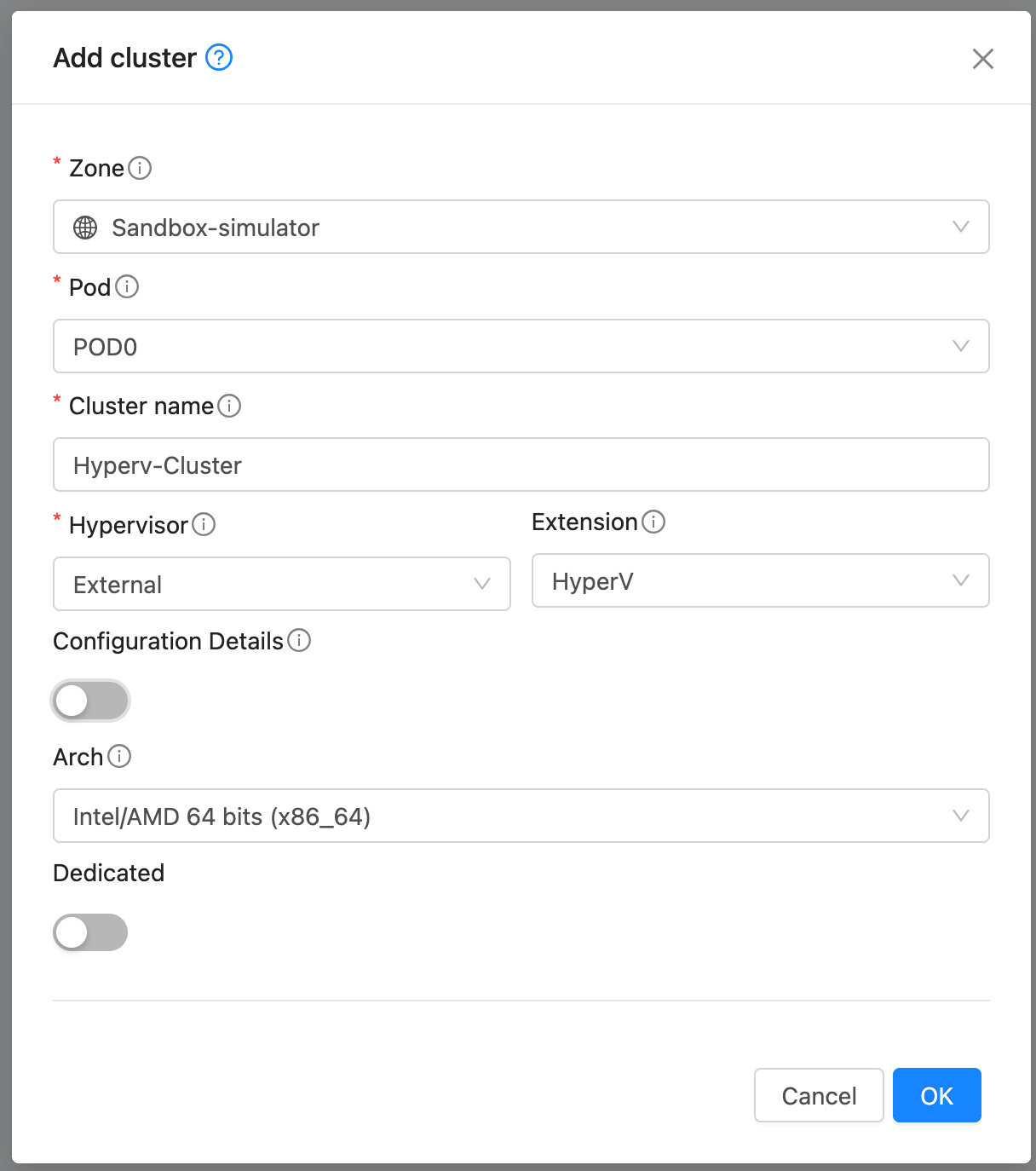
Create Cluster
Create a Cluster with Hypervisor type External and Extension type HyperV.
Add Host
Add a Host to the newly created Cluster with the following details:
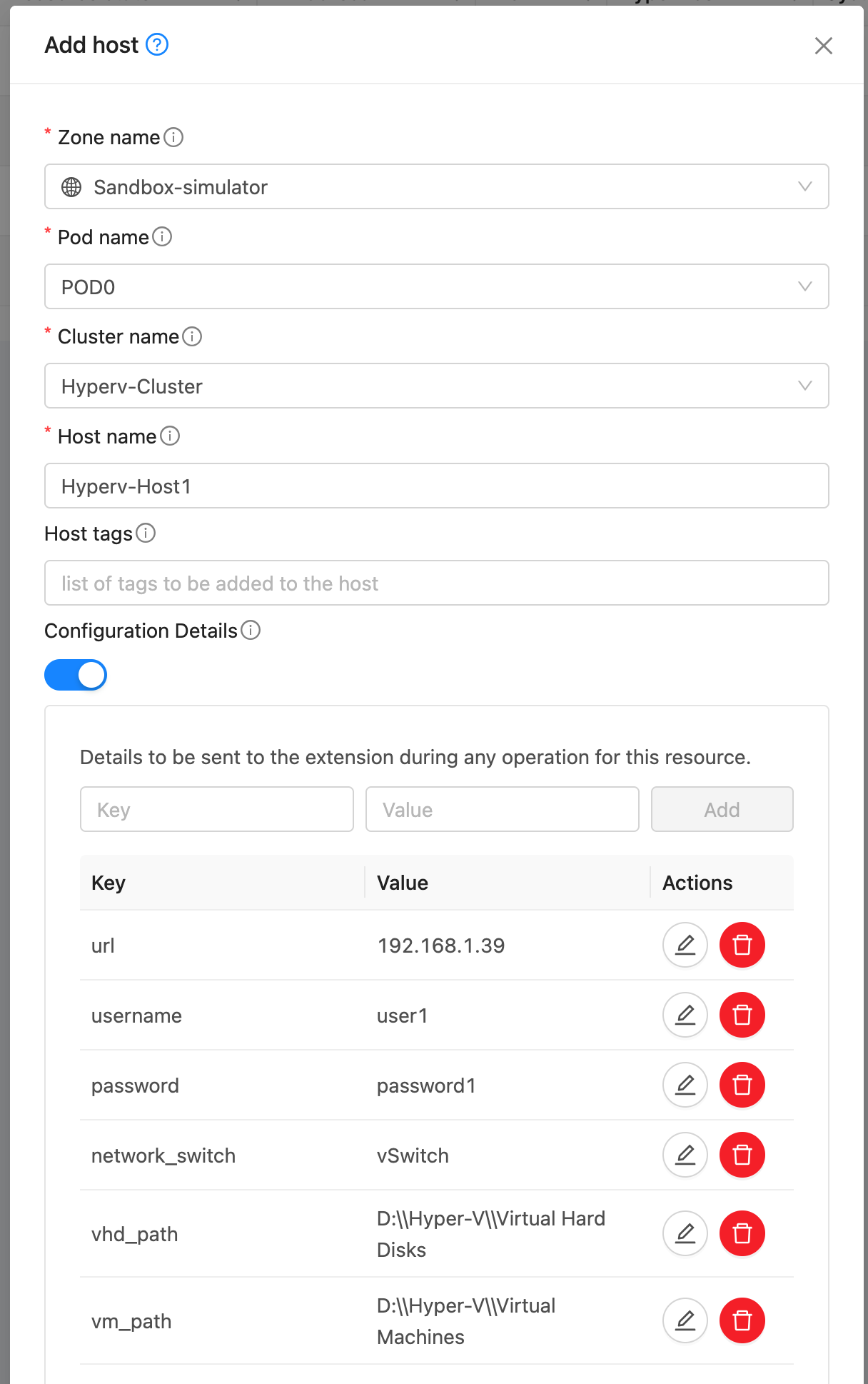
Note: Add the detail verify_tls_certificate set to false to skip TLS certificate verification for self-signed certificates.
Create Template
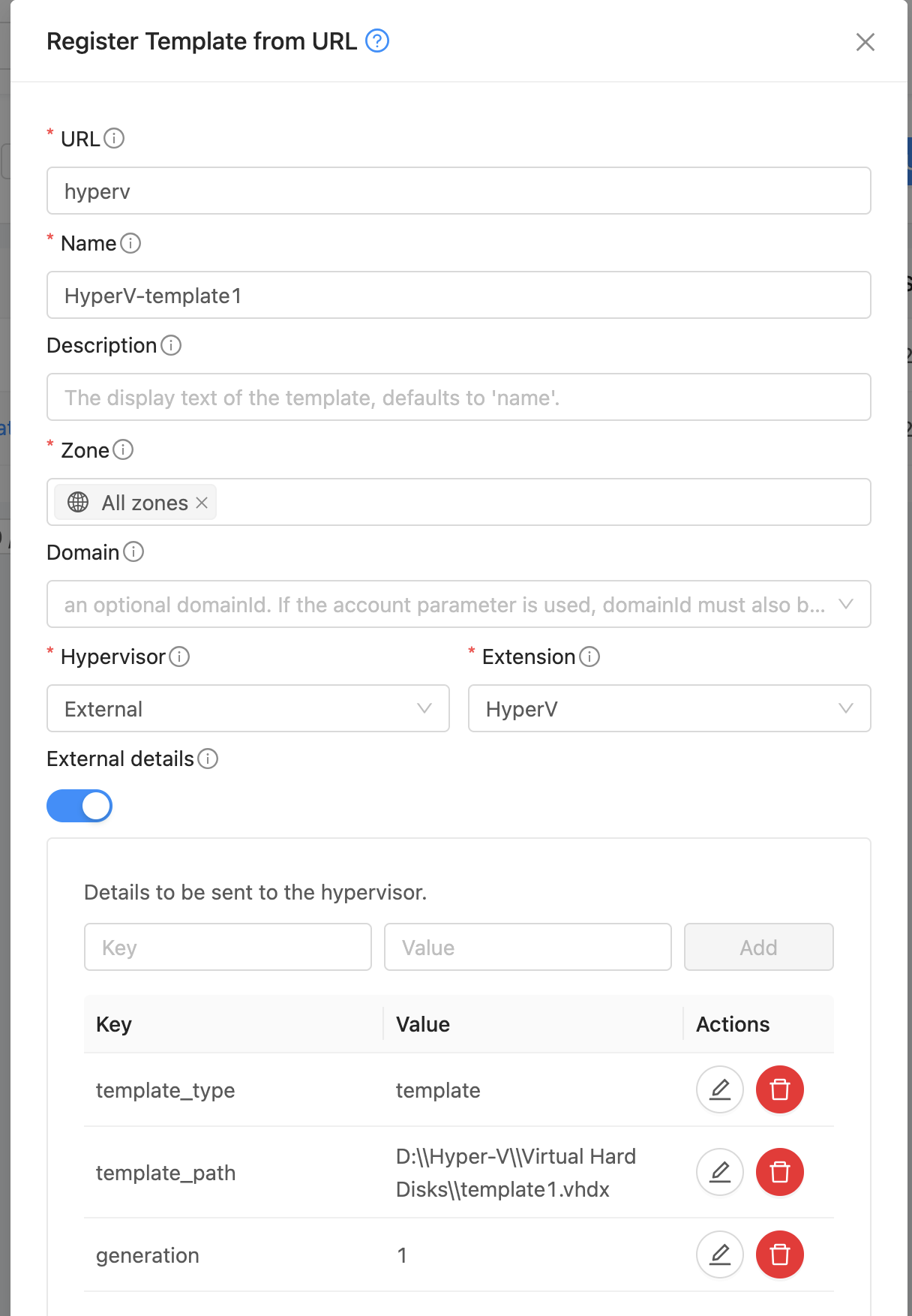
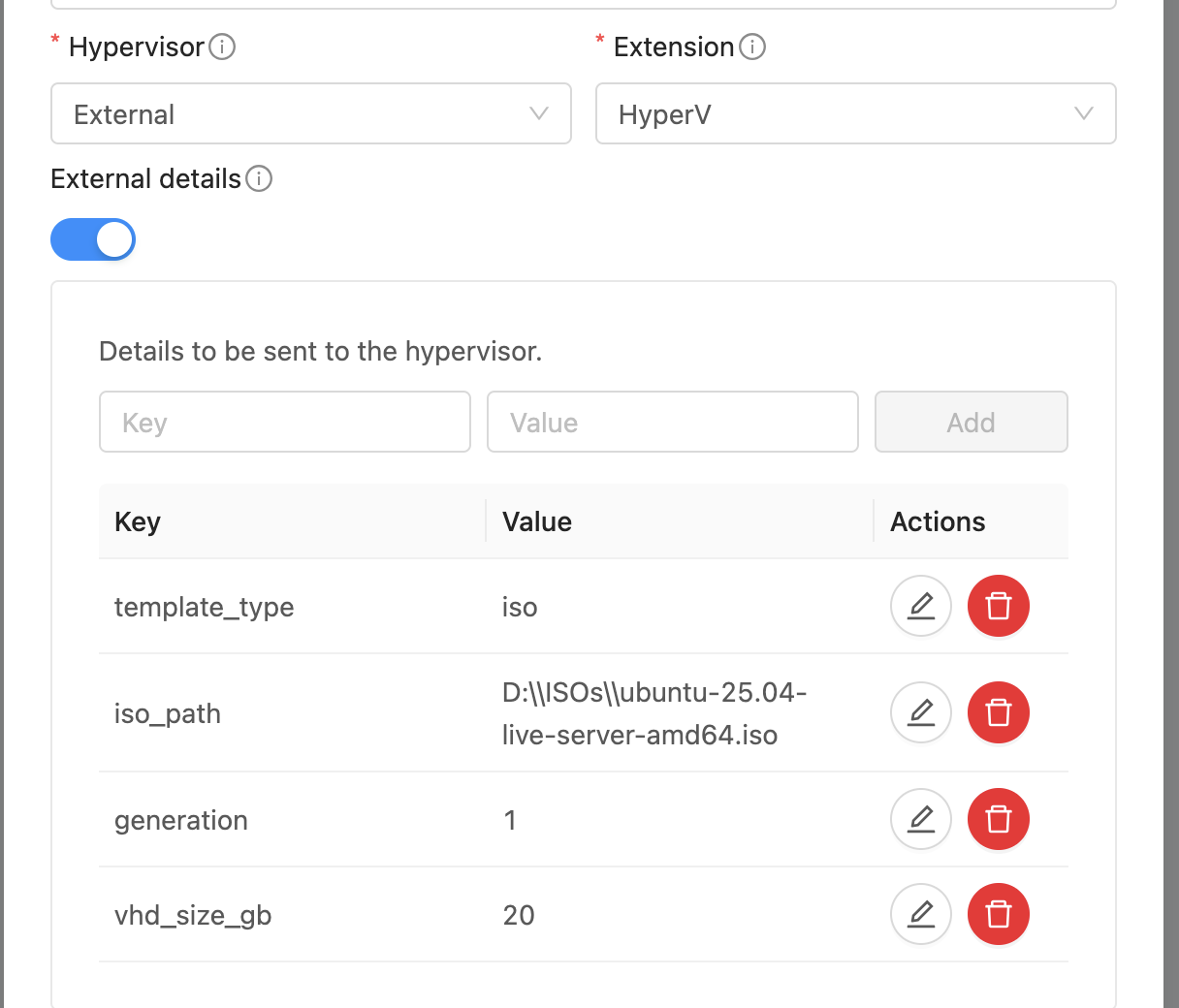
A Template in CloudStack can map to either a Template or an ISO in Hyper-V. Provide a dummy url and Template name. Select External as the hypervisor and HyperV as the Extension. Under External Details, specify:
template_type: template or iso
generation: VM generation (1 or 2)
template_path: Full path to the template .vhdx file (if template_type is template)
iso_path: Full path to the ISO in HyperV (if template_type is iso)
vhd_size_gb: Size of the VHD disk to create (in GB) (if template_type is iso)
Note: Templates and ISOs should be stored on shared storage when using multiple HyperV nodes. Or copy the template/iso to each host’s local storage at the same location.
Deploy Instance
Deploy an Instance using the template created above. The Instance will be provisioned on a randomly selected Hyper-V host. The VM will be configured with the MAC address and VLAN ID as defined in CloudStack. The VM in Hyper-V is created with the name ‘CloudStack Instance’s internal name’ + ‘-’ + ‘CloudStack Instance’s UUID’ to keep it unique.
Lifecycle Operations
Operations Start, Stop, Reboot, and Delete can be performed on the Instance from CloudStack.
Custom Actions
Custom actions Suspend, Resume, Create Snapshot, Restore Snapshot, and Delete Snapshot are also supported for Instances.
Configuring Networking
Hyper-V hosts and CloudStack hypervisor Hosts must be connected via a VLAN trunked network. On each Hyper-V host, an external virtual switch should be created and bound to the physical network interface that carries VLAN-tagged traffic. This switch must be specified in the Configuration Details (network_bridge) when adding the Hyper-V host to CloudStack.
When a VM is deployed, CloudStack includes the assigned MAC address and VLAN ID in the Extension payload. The VM is then created on the Hyper-V host with this MAC address and attached to the specified external switch with the corresponding VLAN configured.
Upon boot, the VM sends a VLAN-tagged DHCP request, which reaches the CloudStack Virtual Router (VR) responsible for that VLAN. The VR responds with the correct IP address as configured in CloudStack. Once the VM receives the lease, it becomes fully integrated into the CloudStack-managed network.
Users can then manage the Hyper-V VM like any other CloudStack guest Instance. Users can apply Egress Policies, Firewall Rules, Port Forwarding, and other networking features seamlessly through the CloudStack UI or API.
MaaS
The MaaS Extension for CloudStack is written in Python and communicates with Canonical MaaS using the MaaS APIs.
Before using the MaaS Extension, ensure that the Canonical MaaS Service is configured correctly with servers added into it and accessible to CloudStack.
Get the API key from MaaS
If not already set up, create a new API Key in the MaaS UI by navigating to left column under admin > API keys.
Existing MAAS consumer token can be used or a new API key can be generated by clicking the Generate MAAS API Key button
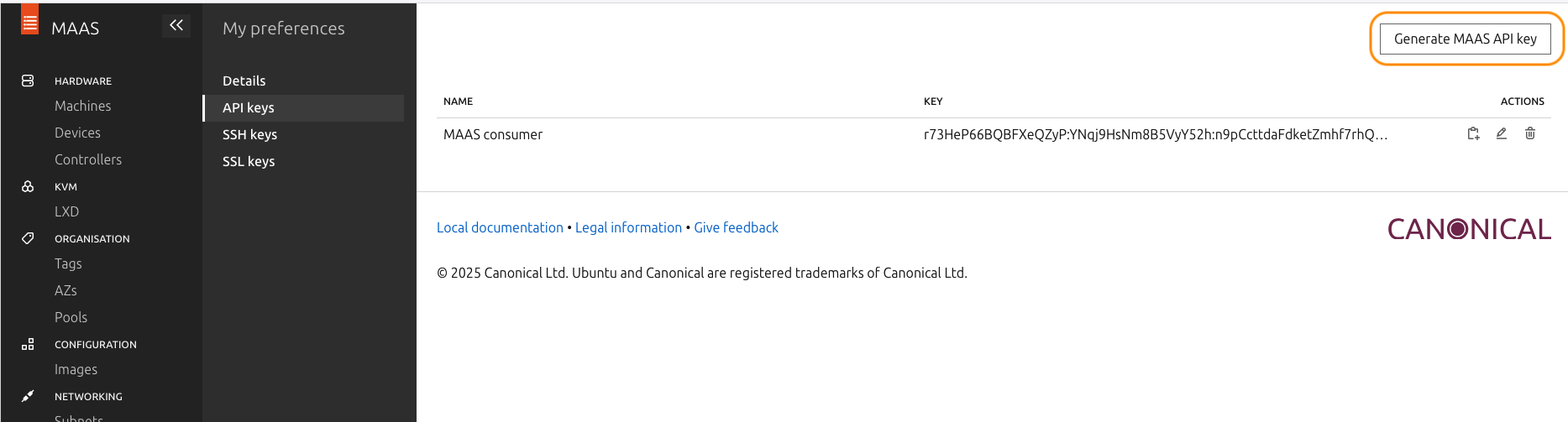
Note down the key value.
You can verify the MAAS API key and connectivity from the CloudStack Management Server by using the MAAS CLI as shown below (replace the example values with your own):
maas login admin http://<MAAS-ENDPOINT>:5240/MAAS <API_KEY>

# Example:
maas login admin http://10.0.80.47:5240/MAAS QqeFTc4fvz9qQyPzGy:UUGKTDf6VwPVDnhXUp:wtAZk6rKeHrFLyDQD9sWcASPkZVSMu6a

# Verify MAAS connectivity and list machines
maas admin machines read | jq '.[].system_id'
If the connection is successful, the command will list all registered machine system IDs from MAAS.
Install required Python libraries
The MAAS Orchestrator Extension uses OAuth1 for API authentication.
Ensure the required Python libraries are installed on the CloudStack Management Server before using this extension. The following command is provided as an example, package installation steps may vary depending on the host operating system:
pip3 install requests requests_oauthlib
Adding MaaS to CloudStack
To set up the MaaS Extension, follow these steps in CloudStack:
Use Default Extension
A default MaaS Extension is already available and enabled under Extensions tab.
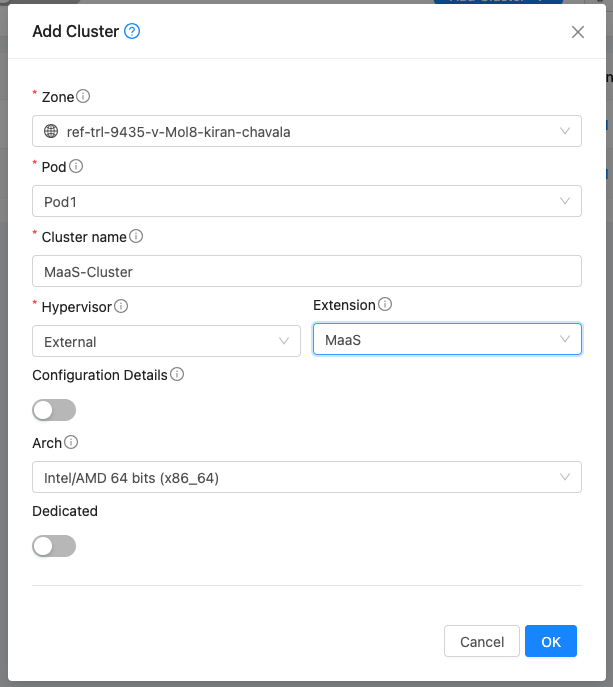
Create Cluster
Create a Cluster with Hypervisor type External and Extension type MaaS.
Add Host
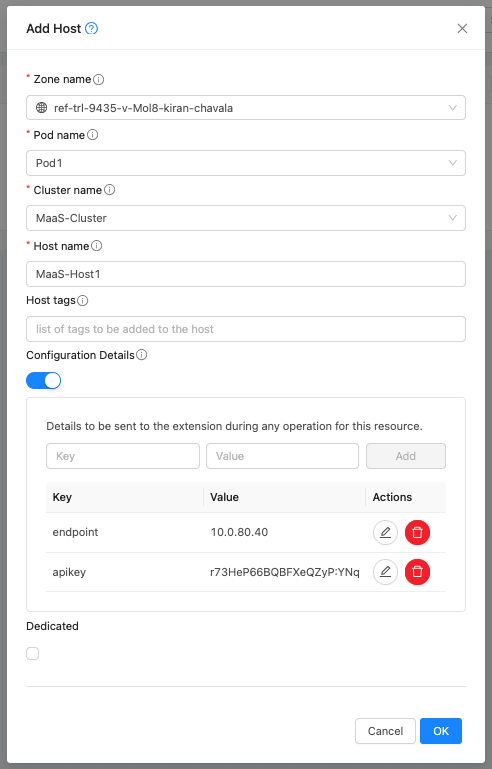
Add a Host to the newly created Cluster with the following details:
To access MaaS environment, the endpoint, apikey need to be set in the Host.
endpoint: IP address of the MaaS server. The API used for operations in the script will look like http://<endpoint>:5240/MAAS/api/2.0.
apikey: API key for MaaS
Create Template
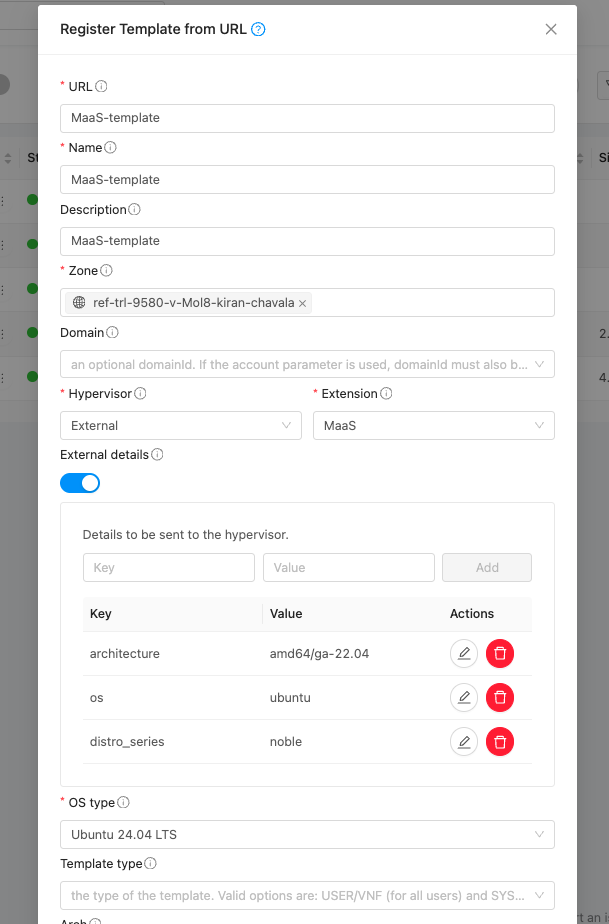
A Template in CloudStack maps to an image available in MaaS that can be deployed on a baremetal server. Provide a dummy url and template name. Select External as the hypervisor and MaaS as the extension. Under External Details, specify the following parameters:
os: Operating system name (e.g., ubuntu)
distro_series: Ubuntu codename (e.g., focal, jammy)
architecture: Image architecture name as listed in MaaS (e.g., amd64/ga-20.04, amd64/hwe-22.04, amd64/generic)
MAAS uses only distro_series to identify the operating system for Ubuntu-based images (for example, focal, jammy).
Example configurations:
# Ubuntu 20.04 (Focal)
os=ubuntu
distro_series=focal
architecture=amd64/ga-20.04
Deploy Instance
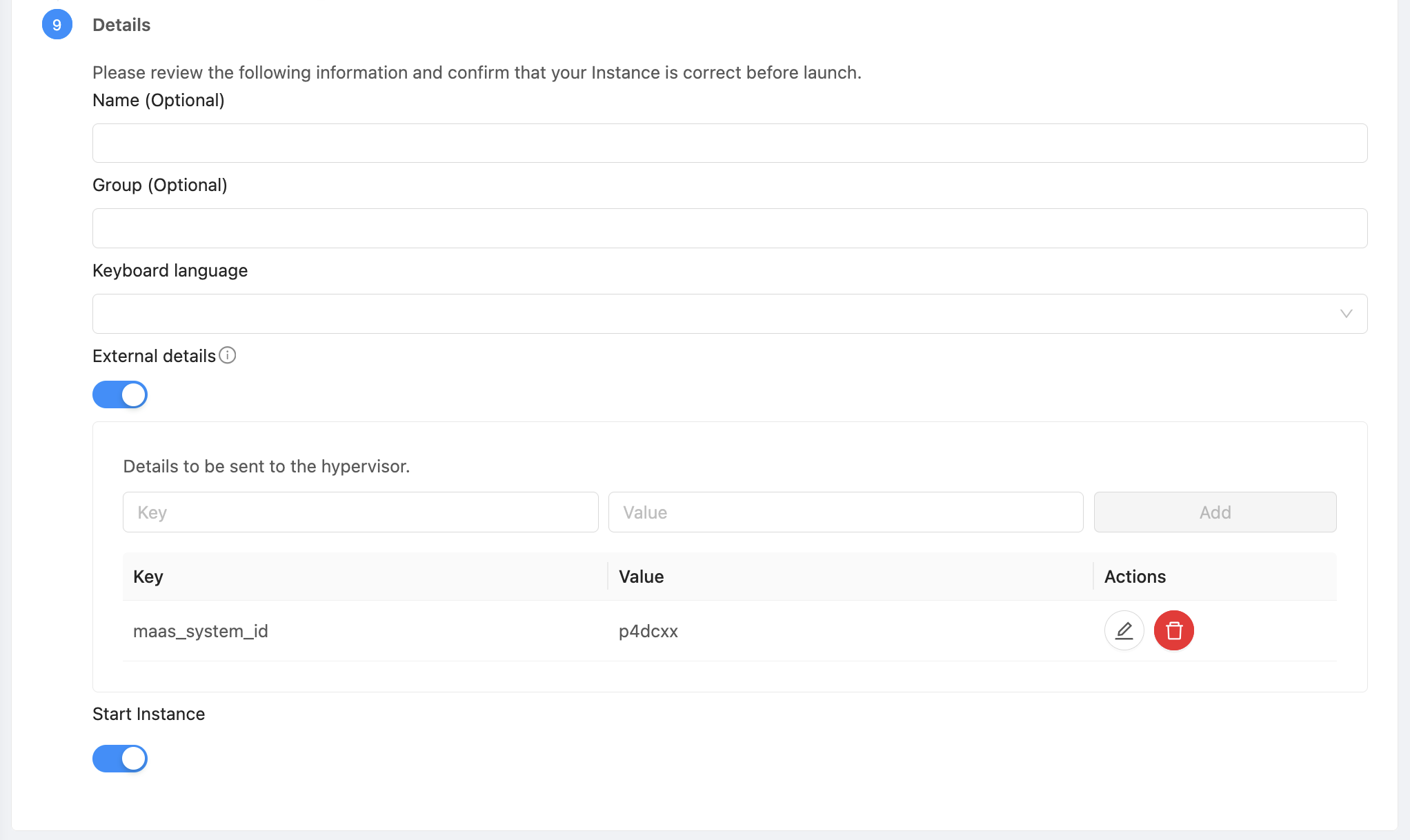
Deploy an Instance using the Template created above. The Instance will be provisioned on a randomly selected MaaS machine. maas_system_id value can be provided in the external details to deploy the instance on specific server.
Lifecycle Operations
Operations Start, Stop, Reboot, and Delete can be performed on the Instance from CloudStack.
Configuring Networking and additional details
The MaaS scenarios have been tested and verified only with a Shared Network setup in CloudStack and with ubuntu based images, using the MAAS Orchestrator Extension. Please find some additional notes with respect to the networking and access related configuration as below,
Configuring TFTP to point to MAAS
Ensure that the TFTP or PXE boot configuration (for example, in pfSense or your network’s DHCP server) is set to point to the MAAS server as the TFTP source. This ensures that VMs retrieve boot images directly from MAAS during PXE boot.
Using CloudStack Virtual Router (VR) as an External DHCP Server
If the end user wants the CloudStack Virtual Router (VR) to act as the external DHCP server for instances provisioned through MAAS, the following configuration steps must be performed.
In CloudStack
Navigate to Networks → Add Shared Network.
Create a Shared Network using the DefaultSharedNetworkOffering, and define an appropriate Guest IP range.

In MAAS
Navigate to Networking → Subnets → Add Subnet and create a subnet corresponding to the same IP range used in CloudStack.
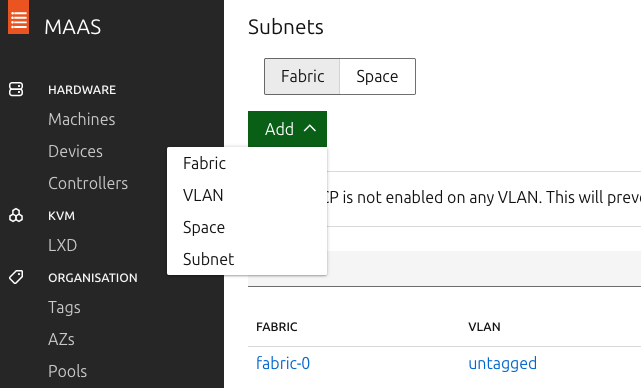
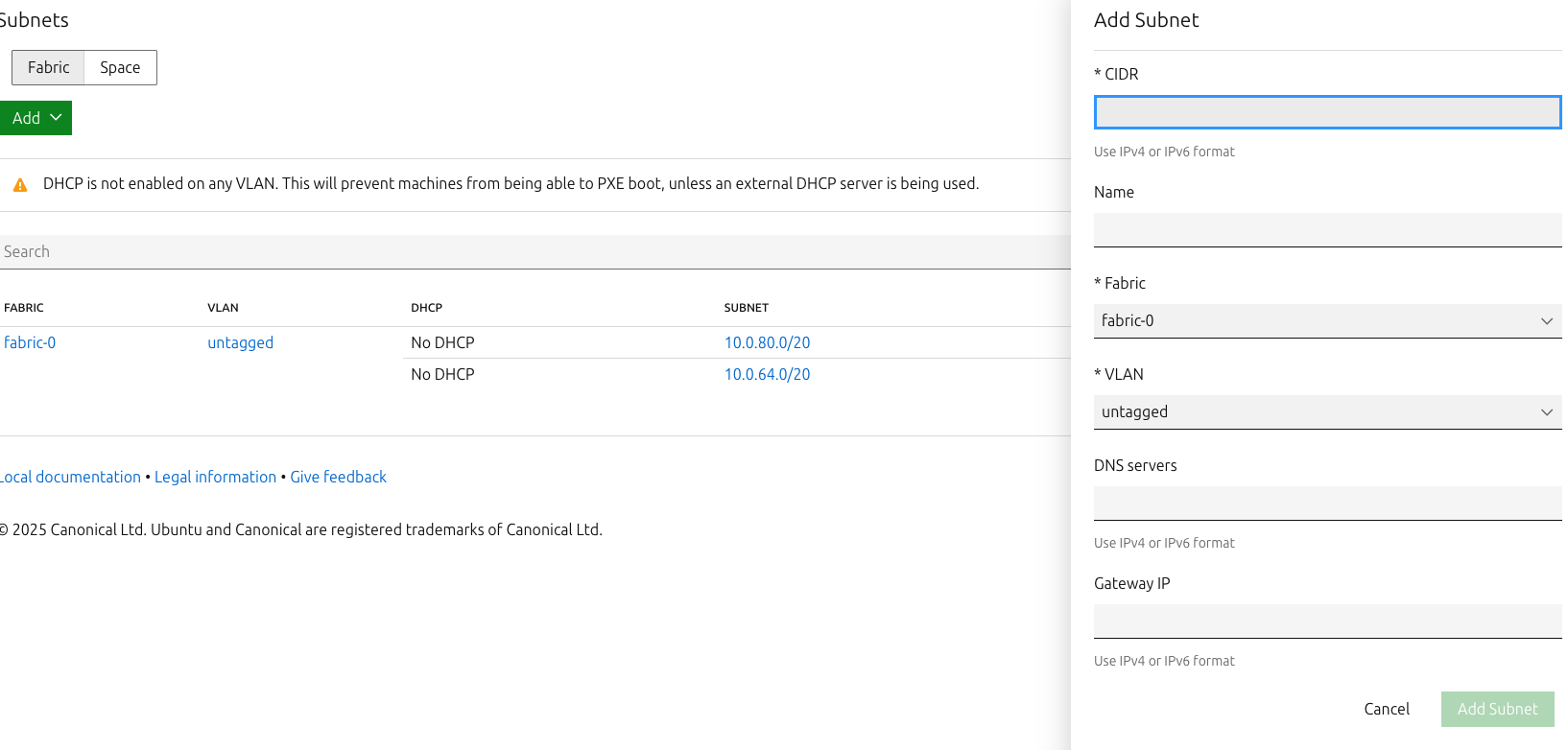
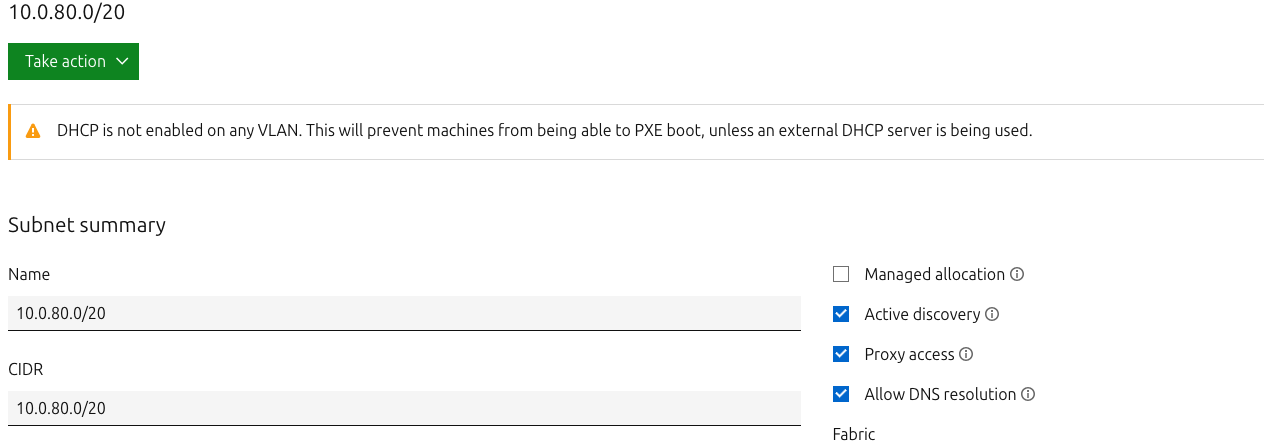
Once the subnet is added: - Ensure Managed allocation is disabled. - Ensure Active discovery is enabled.
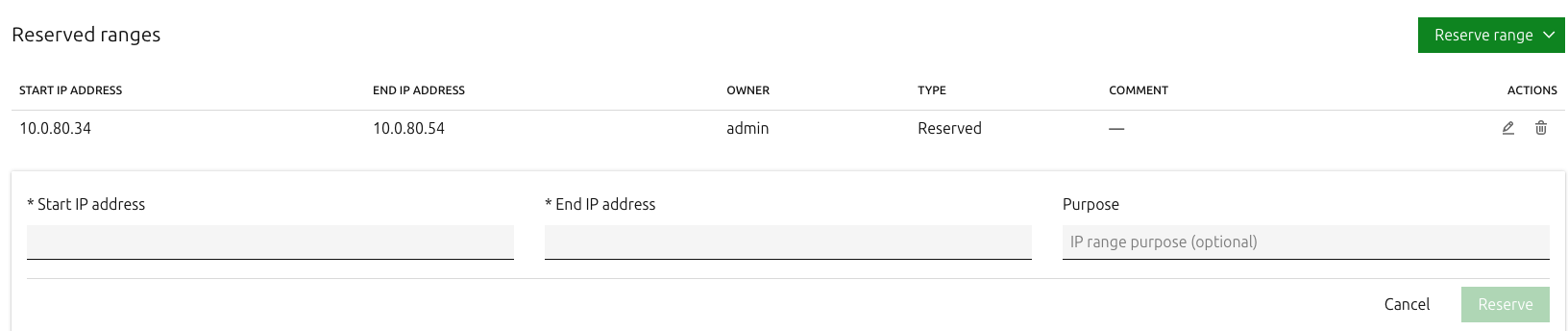
Add a Reserved IP range that matches the CloudStack Guest range (optional, for clarity).
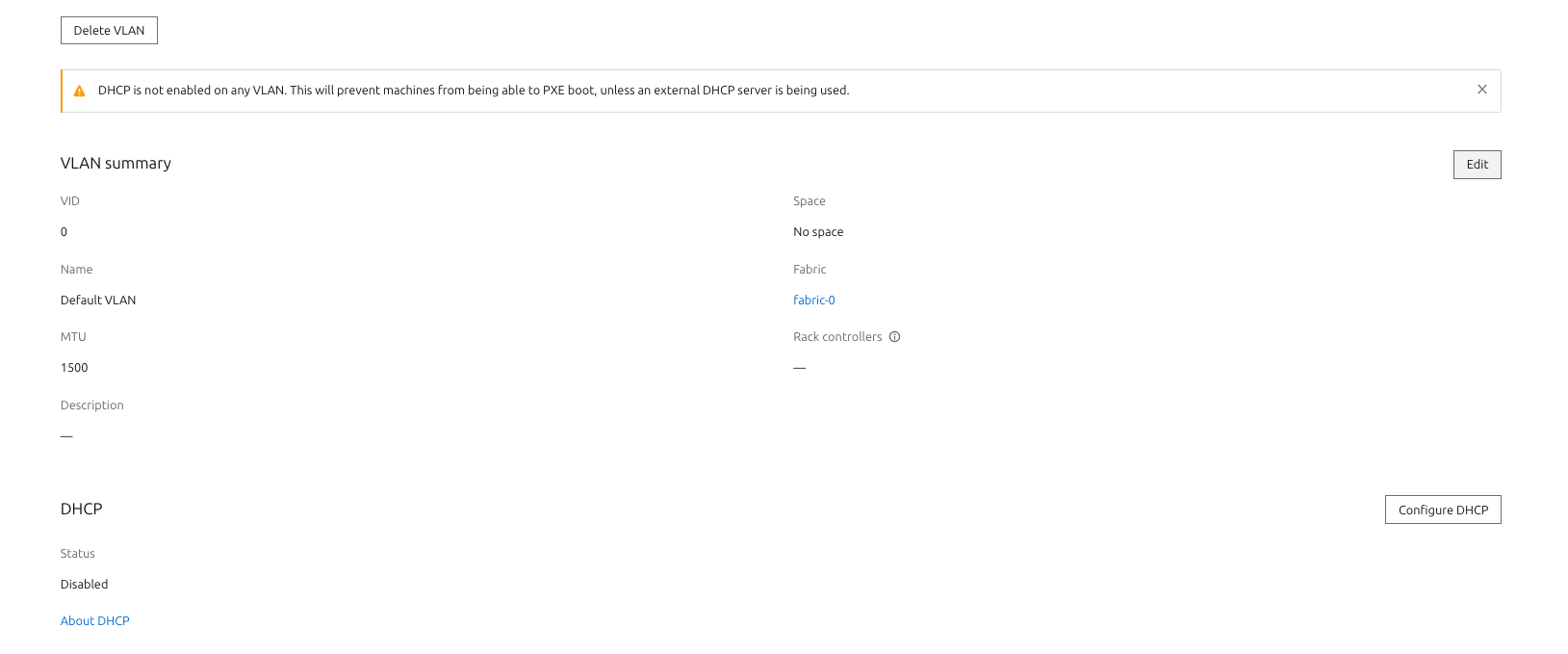
Disable the DHCP service in MAAS: - Navigate to Subnets → VLAN → Edit VLAN. - Ensure the DHCP service is disabled.
For all the servers in MAAS, navigate to each server in the Ready state, go to Network → Server Interface → Edit Physical, and set the IP mode to DHCP.
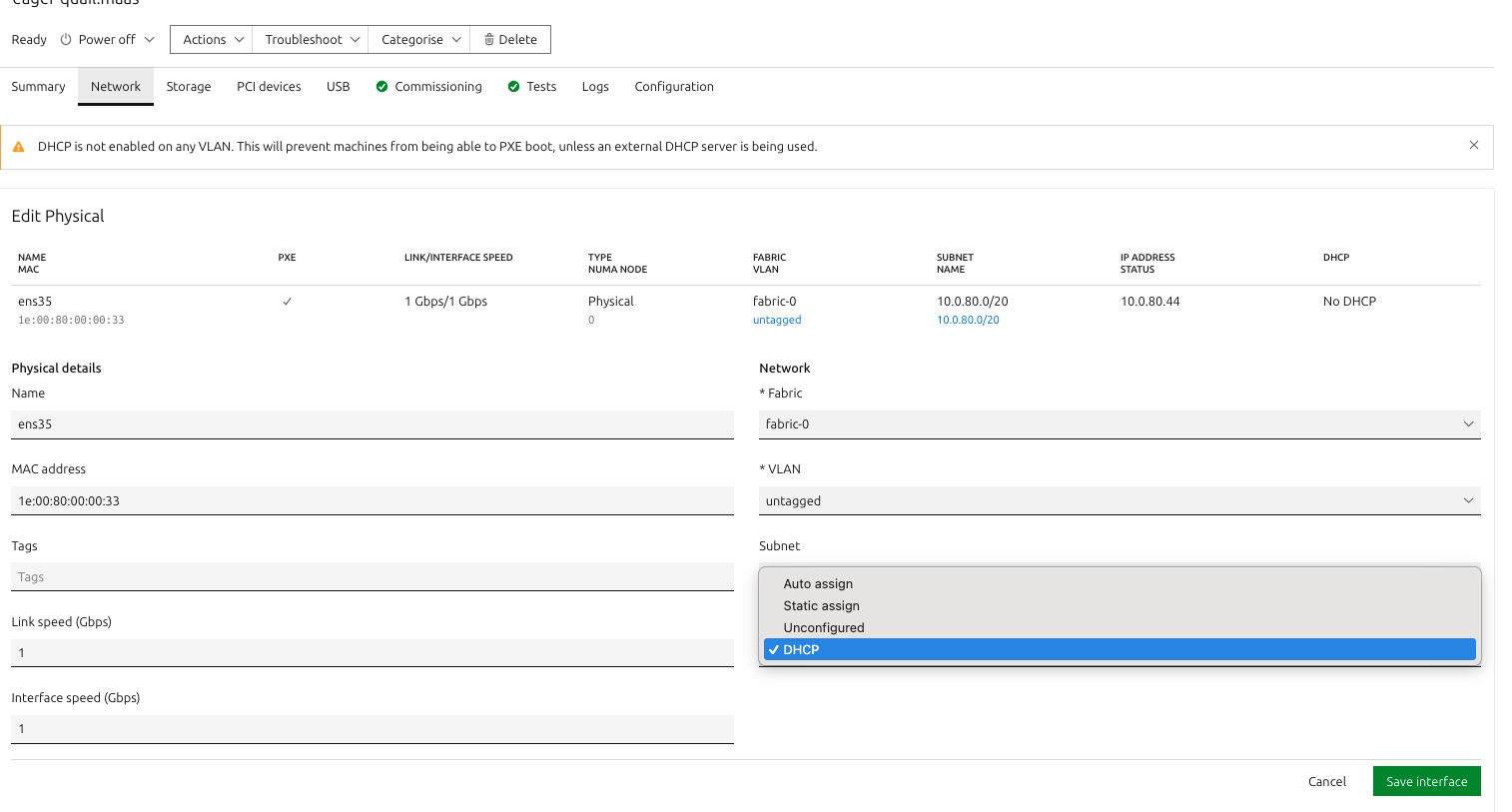
This configuration allows the CloudStack Virtual Router (VR) to provide IP address allocation and DHCP services for the baremetal instances managed through MAAS.
Using CloudStack-Generated SSH Keys for Baremetal Access
If the user wants to use the SSH key pair generated in CloudStack to log into the baremetal server provisioned by MAAS, perform the following steps.
In CloudStack
Navigate to Compute → SSH Keypairs → Create SSH Keypair.
Save the generated private key for later use (CloudStack stores only the public key).
In MAAS
Navigate to Admin → SSH Keys → Import.
Paste the public key from the CloudStack-generated SSH key pair.
Save the changes.
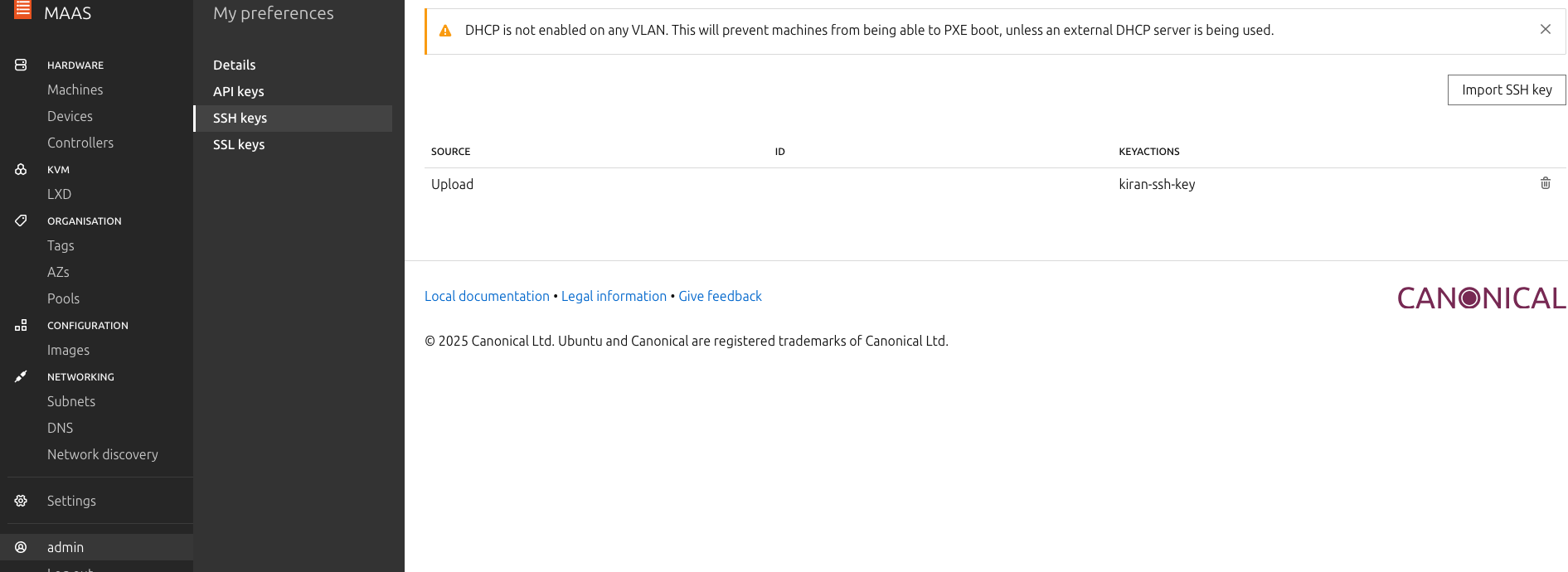
After these steps, any baremetal node deployed via the MAAS Extension can be accessed using the private key from CloudStack.
Limitations
Although the external Instances behave a lot like CloudStack managed Instances in many ways, there are some limitations. Some of these limitations are due to the framework itself, while others can be addressed by adding custom actions in the scripts written for the built-in extensions.
Some general features/actions not supported at the framework level:
Data volumes.
User Data and Metadata services.
SSH key injection.
Affinity Groups.
Migrate Instance.
Host Capacity and Utilization Stats.
Add Nics to Instance post deployment.
Actions which can be implemented using Custom Actions in built-in extensions:
Reinstall Instance.
Backup and Restore.
Recurring Snapshots.
Change Service Offering.
Resize Volume.
Attach ISO.
Troubleshooting Extensions
Validate the Extension Path
Ensure that the path is correctly defined and accessible on all management servers. The executable must be owned by the cloud user and group, and have appropriate permissions to be executed by cloud:cloud.
The script or binary must be executable and have appropriate permissions.
If the binary differs across management servers, the extension will be marked as Not Ready.
Ensure files are stored at: /usr/share/cloudstack-management/extensions/<extension_name>
For NetworkOrchestrator extensions, ensure the configured path resolves either to an executable file or to a directory that contains an executable named <extension_name>.sh.
CloudStack runs a background task at regular intervals to verify path readiness. If the path is not ready, its state will appear as Not Ready in the UI or API responses.
Alerts are generated if the extension path is not ready.
The check interval can be configured using the global configuration - extension.path.state.check.interval. The default is 5 minutes.
Verify Payload Handling
Ensure the extension binary can correctly read and parse the incoming JSON payload.
Payload files are placed at: /var/lib/cloudstack/management/extensions/<extension_name>/
These payload files are automatically cleaned up after 24 hours.
Improper parsing of the payload is a common cause of failure—log any parsing errors in your extension binary for debugging.
NetworkOrchestrator extensions receive
<command> <payload_file> <timeout_seconds>. Verify that the script accepts the command name and reads the JSON payload file rather than expecting named CLI options.For standard network and VPC commands, confirm that the payload file contains the expected top-level keys:
physical-network-extension-details,network-extension-details, andpayload.For
custom-action, confirm that the request uses top-level keys such asactionandaction-paramsinstead of a nestedpayloadobject.For
ensure-network-device, confirm that the script prints a single-line JSON object tostdout. For other commands, unexpectedstdoutoutput is usually a sign that the script is not following the current command contract.
Check Resource Registration and Provider State
Orchestrator extensions must be registered with a
Clusterresource. NetworkOrchestrator extensions must be registered with aPhysicalNetworkresource.If resource-specific configuration changes are needed after registration, use the UI or the
updateRegisteredExtensionAPI instead of unregistering and recreating the mapping.For NetworkOrchestrator extensions, confirm that a network service provider with the same name as the extension exists on the target physical network and is in the expected state before creating network or VPC offerings.
If the provider exists but operations still fail, verify that the provider was enabled after registration and that the intended offering maps each supported service to the extension name.
Verify Declared Network Services
NetworkOrchestrator extensions should declare supported services in the extension detail
network.services.Per-service capabilities should be declared in
network.service.capabilities.If the expected provider services do not appear while creating a network or VPC offering, verify that these details were saved correctly and that any JSON value was quoted correctly when creating or updating the extension.
Common declared services include
SourceNat,StaticNat,PortForwarding,Firewall,Lb,Dhcp,Dns,UserData,NetworkACL, andCustomAction. Additional services such asGatewayorVpncan also be declared when supported by the implementation.
Refer to Base Extension Scripts
For guidance on implementing supported actions, refer to the base scripts present for each extension type.
For Orchestrator-type extensions, see: /usr/share/cloudstack-common/scripts/vm/hypervisor/external/provisioner/provisioner.sh
For NetworkOrchestrator-type extensions, refer to the Network Extension Script Protocol in the CloudStack source tree and the reference implementation in cloudstack-extensions.
These scripts provide examples of how to handle standard actions like start, stop, status, etc.
Check Logs for Errors
If the extension does not respond or returns an error, check the management server logs.
Logs include details of:
Invocation of the extension binary
Payload hand-off
Output parsing
Provider and service resolution for network and VPC operations
Failures while decoding nested payload values such as firewall rules, ACL rules, restore data, or VM metadata blobs
Any exceptions or exit code issues.
Writing Extensions for CloudStack
The CloudStack Extensions Framework allows developers and operators to write extensions using any programming language or script. From CloudStack’s perspective, an extension is an executable capable of handling CloudStack actions and integrating with an external system.
Extension Types
CloudStack currently supports two extension types:
Orchestratorfor external instance lifecycle management. These extensions are registered withClusterresources.NetworkOrchestratorfor external guest network and VPC service orchestration. These extensions are registered withPhysicalNetworkresources.
Both types share the same extension lifecycle in the UI and API, but their invocation model and supported resource mappings differ.
Create a New Extension
You must first register a new extension using the API or UI:
cloudmonkey createExtension name=myext type=Orchestrator path=myext-executable
Arguments:
name: Unique nametype:OrchestratororNetworkOrchestratorpath: Relative path to the executable. Root path will be /usr/share/cloudstack-management/extensions/<extension_name>
The path must be:
Executable (
chmod +x)Owned by the
cloud:clouduserPresent on all management servers (identical path and binary)
If no explicit path is provided during extension creation, CloudStack will scaffold a basic shell script at a default location with minimal required action handlers. This provides a starting point for customization and ensures the extension is immediately recognized and callable by the system.
CloudStack checks extension readiness periodically and shows its state in the UI/API.
For NetworkOrchestrator extensions, define supported services in the extension detail network.services and optionally declare per-service capabilities in network.service.capabilities. CloudStack uses these values when exposing supported providers and validating network and VPC offerings.
Register Extension With a Resource
After creating an extension, register it with the CloudStack resource it serves:
Orchestratorextensions are registered withClusterresources.NetworkOrchestratorextensions are registered withPhysicalNetworkresources.
Resource-level details supplied during registration are useful for endpoints, credentials, host lists, interface mappings, or other device-specific settings. These registration details can later be changed with the updateRegisteredExtension API without removing the existing mapping.
When a NetworkOrchestrator extension is registered with a physical network, CloudStack creates a network service provider using the extension name. Network and VPC offerings can then use that provider name.
Invocation Model
Orchestrator Invocation
Orchestrator extensions must support the following invocation structure:
/path/to/executable <action> <payload_file> <timeout_seconds>
Arguments:
<action>: Action name (e.g.,deploy,start,status)<payload_file>: Path to the input JSON file<timeout_seconds>: Max duration CloudStack will wait for completion
Sample Invocation:
/usr/share/cloudstack-management/extensions/myext/myext.py deploy /var/lib/cloudstack/management/extensions/myext/162345.json 60
NetworkOrchestrator Invocation
NetworkOrchestrator extensions also use the payload-file invocation model:
/path/to/<extension_name>.sh <command> <payload_file> <timeout_seconds>
CloudStack resolves the executable in this order:
<extensionPath>/<extensionName>.sh<extensionPath>itself, if it is an executable file
Depending on the declared services, CloudStack can invoke commands such as ensure-network-device, implement-network, shutdown-network, destroy-network, restore-network, implement-vpc, shutdown-vpc, update-vpc-source-nat-ip, assign-ip, release-ip, add-static-nat, delete-static-nat, add-port-forward, delete-port-forward, apply-fw-rules, apply-network-acl, add-dhcp-entry, remove-dhcp-entry, config-dhcp-subnet, remove-dhcp-subnet, set-dhcp-options, add-dns-entry, config-dns-subnet, remove-dns-subnet, save-vm-data, save-password, save-userdata, save-sshkey, save-hypervisor-hostname, apply-lb-rules, and custom-action.
The command name determines the operation. The payload file carries registration details, stored network or VPC state, and command-specific fields.
Input Format (Payload)
For Orchestrator extensions, CloudStack provides input via a JSON file, which your executable must read and parse.
Example:
{
  "externaldetails": {
    "resourcemap": {
      ...
    },
    "virtualmachine": {
      "exttemplateid": "1"
    },
    "host": {
      ...
    },
    "extension": {
      ...
    }
  },
  "virtualmachineid": "...",
  "cloudstack.vm.details": {
    "id": 100,
    "name": "i-2-100-VM",
    ...
  },
  "virtualmachinename": "i-2-100-VM",
  "caller": {
    "roleid": "6b86674b-7e61-11f0-ba77-1e00c8000158",
    "rolename": "Root Admin",
    "name": "admin",
    "roletype": "Admin",
    "id": "93567ed9-7e61-11f0-ba77-1e00c8000158",
    "type": "ADMIN"
  }
}
The schema varies depending on the resource and action. Use this to perform context-specific logic.
For NetworkOrchestrator extensions, CloudStack writes a JSON payload file and passes its path as the second argument. For standard network and VPC commands, the payload has this envelope:
{
  "physical-network-extension-details": {},
  "network-extension-details": {},
  "payload": {}
}
physical-network-extension-details contains the registration details stored against the physical network, enriched with values such as the physical network name. network-extension-details contains the per-network or per-VPC state saved by the extension, including the output previously returned by ensure-network-device. payload contains the command-specific fields.
Frequently used payload fields include network_id, vpc_id, vlan, gateway, cidr, extension_ip, public_ip, public_cidr, public_vlan, public_gateway, private_ip, nic_uuid, dns, and domain.
For custom-action, CloudStack still uses a payload file, but the command-specific values are placed at the top level instead of under payload. The request includes keys such as action, action-params, physical-network-extension-details, and network-extension-details.
Output Format
Orchestrator extensions should write a response JSON to stdout. Example:
{
  "status": "success",
  "message": "Deployment completed"
}
For custom actions, CloudStack will display the message in the UI if the output JSON includes "printmessage": "true".
The message field can be a string, a JSON object or a JSON array.
For NetworkOrchestrator extensions, all commands must exit with code 0 on success and a non-zero code on failure. ensure-network-device is special: it must write a single-line JSON object to stdout and CloudStack persists that JSON for later calls. custom-action may also return output on stdout. Other commands should not rely on stdout for normal operation because CloudStack ignores it apart from debug logging.
Declaring Network Services and Capabilities
NetworkOrchestrator extensions should declare their supported services in the extension detail network.services as a comma-separated list. Example values include SourceNat, StaticNat, PortForwarding, Firewall, Lb, Dhcp, Dns, UserData, NetworkACL, Gateway, Vpn, and CustomAction.
Use network.service.capabilities to provide a JSON object describing capability values for the declared services. CloudStack uses these capabilities when listing supported providers and validating network or VPC offerings.
For example, Firewall capabilities can declare values such as SupportedProtocols, SupportedEgressProtocols, and SupportedTrafficDirection; Lb can declare SupportedLBAlgorithms and SupportedProtocols; and SourceNat can declare SupportedSourceNatTypes.
CloudStack Setup for NetworkOrchestrator
After creating a NetworkOrchestrator extension, the usual setup flow is:
Deploy the executable to the path returned by
listExtensionson every management server.Register the extension with a
PhysicalNetworkusingregisterExtensionand pass any device-specific details required by the script.Enable the generated network service provider on that physical network.
Create network or VPC offerings that map supported services to the extension name.
When registration details need to change, update them with
updateRegisteredExtensioninstead of deleting and recreating the mapping.
Service-to-Command Mapping
NetworkOrchestrator scripts only need to implement the commands for the services they advertise in network.services.
SourceNatandGatewaytriggerassign-ipandrelease-ip.StaticNattriggersadd-static-natanddelete-static-nat.PortForwardingtriggersadd-port-forwardanddelete-port-forward.Firewalltriggersapply-fw-rules.Lbtriggersapply-lb-rules.NetworkACLtriggersapply-network-acl.Dhcptriggersadd-dhcp-entry,remove-dhcp-entry,config-dhcp-subnet,remove-dhcp-subnet, andset-dhcp-options.Dnstriggersadd-dns-entry,config-dns-subnet, andremove-dns-subnet.UserDatatriggerssave-vm-data,save-password,save-userdata,save-sshkey, andsave-hypervisor-hostname.Network lifecycle operations always include
ensure-network-device,implement-network,shutdown-network,destroy-network, andrestore-network.VPC lifecycle operations include
ensure-network-device,implement-vpc,shutdown-vpc, andupdate-vpc-source-nat-ip.Operator-triggered actions use
custom-action.
VPC and Extension IP Notes
For VPC-backed networks, CloudStack includes vpc_id in tier-level payloads and invokes VPC-level lifecycle commands without a network_id. Use that value when the implementation needs to keep all tiers of a VPC on the same device.
extension_ip is the IP address the external device presents on the guest side. When the extension provides SourceNat or Gateway, it typically matches the network gateway. When the extension only provides services such as Dhcp, Dns, or UserData, CloudStack can allocate a dedicated guest-side IP for the device and pass it as extension_ip.
Action Lifecycle
A CloudStack action (e.g., deploy VM) triggers a corresponding extension action.
CloudStack invokes the extension’s executable using the protocol defined by the extension type.
The extension processes the input and responds within the timeout.
CloudStack continues action workflow based on the result.
Console Access for Instances with Orchestrator Extensions
Orchestrator extensions can provide console access for instances either through VNC or a URL.
To enable this, the extension must implement the getconsole action and return output in one of the following JSON formats:
VNC-based console:
{
  "status": "success",
  ...
  "console": {
    "host": "pve-node1.internal",
    "port": "5901",
    "password": "PVEVNC:6329C6AA::ZPcs5MT....d9",
    "passwordonetimeuseonly": true
    "protocol": "vnc"
  }
}
passwordonetimeuseonly is optional. It can be set to true if the system returns a one-time-use VNC ticket.
For VNC-based access, the returned details are forwarded to the Console Proxy VM (CPVM) in the same zone as the instance. The specified host and port must be reachable from the CPVM.
Direct URL-based console:
{
  "status": "success",
  ...
  "console": {
    "url": "CONSOLE_URL",
    "protocol": "direct"
  }
}
Note
For URL–based console access, CloudStack does not report the acquired or client IP address. In this mode, security and access control must be handled by the server providing the console.
Protocol value of direct can be used for URL–based console access.
Custom Actions
You can define new custom actions for users or admin-triggered workflows.
Register via UI or
addCustomActionAPIChoose a resource type that matches the extension type:
VirtualMachinefor Orchestrator,NetworkorVpcfor NetworkOrchestratorDefine input parameters (name, type, required)
Implement the handler for the custom action in your executable.
For NetworkOrchestrator extensions, advertise the CustomAction service in network.services if the extension should receive custom actions for network or VPC resources.
For network extension custom actions, the script should read the payload file passed on the command line and parse the top-level keys rather than looking for a nested payload object.
CloudStack UI will render forms dynamically based on these definitions.
Best Practices
Make executable/script idempotent and stateless
Validate all inputs before acting
Avoid hard dependencies on CloudStack internals
Implement logging for troubleshooting
Use exit code and
stdoutfor signaling success/failureKeep
network.servicesandnetwork.service.capabilitiesaligned with the services your NetworkOrchestrator implementation actually handlesUse resource registration details for environment-specific settings and rotate them with
updateRegisteredExtensioninstead of recreating mappings when possibleKeep non-
ensure-network-devicecommands quiet onstdoutunless the command contract explicitly returns output, such ascustom-action
Extension Examples
Bash Example
#!/bin/bash
ACTION=$1
FILE=$2
TIMEOUT=$3

if [ "$ACTION" == "deploy" ]; then
    echo '{ "success": true, "result": { "message": "OK" } }'
else
    echo '{ "success": false, "result": { "message": "Unsupported action" } }'
fi
Python Example
import sys, json

action = sys.argv[1]
payload_file = sys.argv[2]

with open(payload_file) as f:
    data = json.load(f)

if action == "deploy":
    print(json.dumps({"success": True, "result": {"message": "Deployed"}}))
else:
    print(json.dumps({"success": False, "result": {"message": "Unknown action"}}))
For a clearer understanding of how to implement an Orchestrator extension, developers can refer to the base shell script scaffolded by CloudStack for orchestrator-type extensions. This script is located at:
/usr/share/cloudstack-common/scripts/vm/hypervisor/external/provisioner/provisioner.sh
It serves as a template with minimal required action handlers, making it a useful starting point for building new extensions.
For NetworkOrchestrator extensions, refer to the Network Extension Script Protocol in the CloudStack source tree and the reference implementation in cloudstack-extensions.
Additionally, CloudStack includes in-built extensions for Proxmox and Hyper-V that demonstrate how to implement extensions in different languages - Bash and Python.